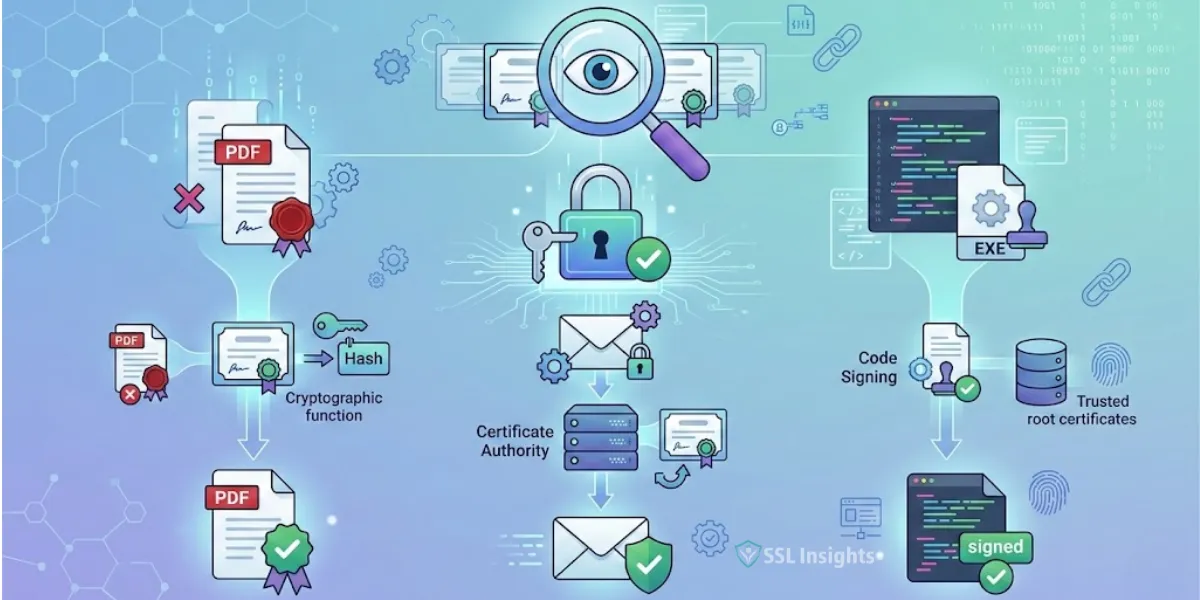
Verifying a digital signature confirms two things at once: that the content came from who it claims to have come from, and that nothing changed after it was signed. The process works by applying the signer's public key to decrypt a cryptographic hash stored in the signature, then comparing it against a freshly computed hash of the file. If the two values match, the signature is valid. If they differ - even by a single character - verification fails. This guide covers how to verify digital signatures across four common scenarios: PDF documents, Microsoft Office files, emails, and signed code or software packages.
What Is a Digital Signature?
A digital signature is a cryptographic mechanism that uses public key infrastructure (PKI) to bind a signer's identity to specific content at a specific point in time. When someone signs a file, their software hashes the content, encrypts that hash with the signer's private key, and attaches the result alongside their digital certificate. Verification reverses the process using the signer's public key.
Three properties define every valid digital signature: authentication (the signer's identity is tied to a CA-issued certificate), integrity (the content has not changed since signing), and non-repudiation (the signer cannot credibly deny approval). Understanding this explains why verification checks both the signature math and the certificate behind it. For a deeper look at how these keys work, see this guide to public key vs private key cryptography.
How Do You Verify a Digital Signature in a PDF?
To verify a digital signature in a PDF, open the file in Adobe Acrobat or Acrobat Reader, locate the signature panel, and run the built-in validation check.
- Open the signed PDF in Adobe Acrobat or Acrobat Reader.
- Click All tools in the top bar, then select Use a certificate.
- Choose Validate all signatures.
- Review the Signature Validation Status dialog.
- Click Signature Properties to inspect the signer's certificate, issuing CA, and timestamp.
- Confirm the certificate traces to a trusted root CA and has not expired or been revoked.
A green checkmark means the signature passed all checks. A yellow warning triangle indicates a recoverable issue - for example, the signing certificate's CA may not yet be in Acrobat's trust store. A red X signals that either the certificate is revoked or the document content changed after signing. In that case, request a freshly signed copy from the sender.
As of 2025, NIST's FIPS 186-5 Digital Signature Standard governs the approved algorithms underlying these certificates, including RSA, ECDSA, and EdDSA, according to NIST's Digital Signature Standard documentation (August 2024).
How Do You Verify a Digital Signature in Microsoft Office Files?
Microsoft Word, Excel, and PowerPoint support digital signatures natively, and verification takes only seconds.
- Open the signed .docx, .xlsx, or .pptx file.
- Click File > Info, then select View Signatures.
- In the Signatures pane, click the down-arrow next to the signer's name.
- Choose Signature Details from the dropdown.
The dialog shows one of four statuses: Valid (certificate trusted and current), Invalid (content altered or certificate revoked), Recoverable error (certificate expired or machine offline), or Partial signature (only part of the file was covered). For anything other than Valid, request a fresh copy from the sender.
How Do You Verify a Digitally Signed Email?
Email verification depends on S/MIME certificates, and the steps vary by client.
- In Microsoft Outlook: Open the signed message. Look at the Signed By line below the sender's name - this is more authoritative than the From field. If the two addresses differ, the Signed By identity is what the certificate actually attests to. Select the ribbon to check validity status.
- In Apple Mail: Open the message and click the Signed checkmark icon. Review the certificate trust chain and confirm the issuing CA has not expired.
- In Gmail: A lock icon or security indicator appears for S/MIME messages in Google Workspace environments. Click it to see the signer's certificate details.
If a signature is invalid, the most common causes are: expired certificate, untrusted CA, or message body altered in transit.
How Do You Verify a Digital Signature on Software or Code?
Software verification uses GPG (GNU Privacy Guard), an open-source implementation of the OpenPGP standard. This approach is common for Linux packages, open-source releases, and any executable where the developer distributes a separate .sig or .asc signature file alongside the download.
Step 1 - Install GnuPG if needed. On most Linux distributions, GnuPG ships by default. On Windows, install Gpg4win. On macOS, use GPGTools.
Step 2 - Import the developer's public key. Download the public key from the developer's official site, then import it:
gpg --import developer-public-key.asc
Step 3 - Verify the key fingerprint. Compare the imported fingerprint against the one published on the developer's official website:
gpg --fingerprint keyid-or-email
Step 4 - Run verification. Provide the .sig file first, then the downloaded file:
gpg --verify filename.tar.gz.sig filename.tar.gz
Step 5 - Read the output. Good signature from "Developer Name" confirms authenticity. BAD signature means the file was altered - do not install it.
For Windows executables (.exe, .msi, .dll): Right-click the file, select Properties, then open the Digital Signatures tab. Click the signer name, then Details, and confirm the CA is trusted.
What Does It Mean When a Certificate Is Not Trusted?
When verification fails because the certificate is "not trusted," the issue is almost always a gap in the certificate chain. Every valid digital certificate must trace back through intermediate certificates to a root CA that your system or application trusts.
| Warning Message | Likely Cause | Recommended Action |
| Certificate not trusted | Root CA not in trust store | Import the CA's root certificate manually |
| Certificate expired | Signing cert past validity date | Request a re-signed version from sender |
| Certificate revoked | CA revoked the cert | Reject the document and notify sender |
| Signature invalid | Content altered after signing | Do not use - request a fresh signed copy |
| Untrusted timestamp | Timestamp server unavailable | Verify the signing date through other means |
For internal enterprise documents, IT teams can distribute root CA certificates via Group Policy to resolve most "not trusted" warnings. For external files, check whether the signer used a self-signed certificate vs a trusted CA certificate - self-signed certificates will always trigger a trust warning even when the signature math is intact.
What Is the Difference Between Verifying a Signature and Validating a Certificate?
These are distinct operations. Signature verification checks the mathematical proof that content has not changed. Certificate validation checks whether the identity behind the signature is currently trustworthy.
Verification alone cannot confirm that the signer's certificate was still valid when you check it. A document could carry a sound signature from a certificate revoked days after signing. Certificate validation - via CRL or OCSP - fills that gap by confirming the certificate was in good standing at the time of signing.
Most PDF and Office applications handle both checks automatically when online. For offline scenarios, OCSP stapling preserves a timestamped revocation confirmation without a live connection. For high-stakes contracts or regulatory filings, confirm both checks passed before acting on the document.
Start With the File Type, Then Choose Your Tool
Verification is most reliable when you match the right tool to the content format. Adobe Acrobat covers PDFs, Microsoft Office handles its own file types, your email client manages S/MIME automatically, and GPG or platform-specific tools address signed executables and packages. Every scenario shares one step: confirm the signing certificate traces to a trusted root CA and has not been revoked. If it has not, and the content hash matches, the signature is sound.
Start by identifying the format, follow the matching verification steps above, and inspect the certificate details before trusting any signed content.
Frequently Asked Questions About Verify Digital Signature
Can I verify a digital signature without internet access?
Offline verification is possible if the signature contains an embedded OCSP response or a long-term validation (LTV) timestamp. Without one, your tool cannot check for revocation, so the result is technically incomplete. For high-assurance documents, ensure the signing application embeds LTV data before distributing the file.
What happens if someone modifies a digitally signed document?
Any post-signing change - even a single space - invalidates the signature. The hash stored in the signature no longer matches the newly computed hash of the altered file, and your application will display a red X or an explicit "signature invalid" warning.
Why does my email client say the signature is valid but warn "not trusted"?
"Valid" means the math checks out and the message was not altered. "Not trusted" means the CA that issued the signer's certificate is absent from your client's trusted authority list. The two checks are independent. You can trust the signer manually if you verify their certificate through another channel.
Is GPG the only way to verify signed software?
No. Windows provides built-in checking via the Digital Signatures tab in File Properties and via PowerShell's Get-AuthenticodeSignature command. On Linux, package managers like apt and dnf verify GPG signatures automatically during installation. GPG is primarily needed for manually downloaded tarballs and open-source releases outside package repositories.
How do I verify a digital signature on a Mac?
For PDFs, use Adobe Acrobat Reader (Preview provides limited validation detail). For code and software, install GPGTools and follow the same GPG steps used on Linux. For email, Apple Mail shows the signed status natively - click the checkmark in the message header to review the full certificate chain.
What should I do if verification fails on a legal document?
Do not use or act on the document. Contact the sender immediately and request a freshly signed copy, noting the exact error. For litigation or regulatory submissions, consult legal counsel before proceeding - a failed verification on a signed document may itself carry evidentiary weight.

Priya Mervana
 Verified Web Security Experts

Priya Mervana is working at SSLInsights.com as a web security expert with over 10 years of experience writing about encryption, SSL certificates, and online privacy. She aims to make complex security topics easily understandable for everyday internet users.