
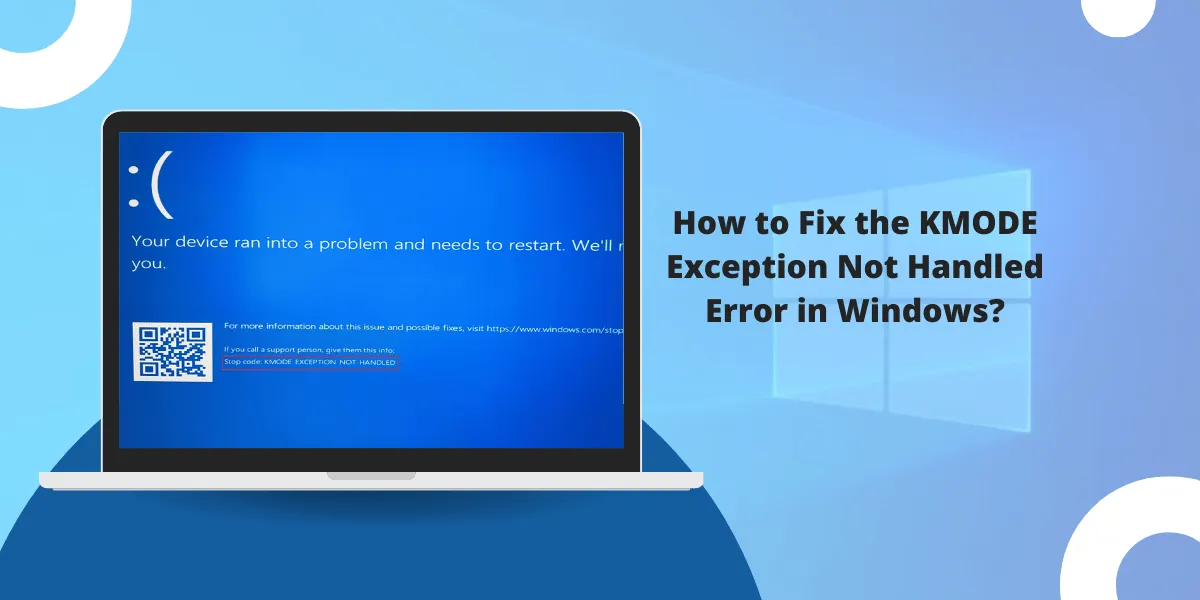
The KMODE_EXCEPTION_NOT_HANDLED error is a Windows Blue Screen of Death (BSOD) with stop code 0x0000001E, triggered when a kernel-mode process generates an exception that Windows cannot catch and recover from. It crashes your entire system - not just one app - and requires a restart to recover. In most cases, the fix does not require reinstalling Windows.
KMODE_EXCEPTION_NOT_HANDLED Defined: A kernel-mode exception that Windows' error handler failed to intercept. Kernel-mode processes run with unrestricted access to system memory and CPU instructions, so when one crashes, the whole OS goes down with it. The stop code 0x0000001E is the standard bug check value for this specific failure.
What Causes the KMODE_EXCEPTION_NOT_HANDLED BSOD?
The error fires when kernel-mode code violates memory boundaries or attempts to access an invalid address. According to Microsoft's data on Windows stop error causes, 70% of BSOD crashes on Windows stem from bugs in third-party drivers - making driver conflicts the most likely cause of this specific stop code.
The most frequent triggers include:
- Outdated or corrupt device drivers especially network adapters, GPU, and storage controllers
- Faulty or improperly seated RAM causing memory address violations
- Incompatible hardware installed shortly before crashes began
- Corrupt Windows system files preventing stable kernel operation
- Overclocked CPU, GPU, or RAM running beyond manufacturer-rated limits
- Antivirus or VPN software conflicting with kernel-level processes
When the BSOD displays a filename in brackets - like ndis.sys or win32k.sys - that file is your first diagnostic clue. Note it before the screen disappears.
How Do You Read the KMODE Stop Code Before It Disappears?
When the blue screen appears, Windows shows the stop code and sometimes a specific filename. If the screen vanishes too fast:
- Press Win + R, type eventvwr.msc, and press Enter
- Go to Windows Logs → System
- Filter by Error and find events near the crash time
- The source field often names the driver or process responsible
To keep the screen visible long enough to read, go to Settings → System → About → Advanced system settings → Startup and Recovery and disable Automatically restart. The BSOD will stay on screen until you manually restart.
How Do You Fix KMODE_EXCEPTION_NOT_HANDLED by Updating Drivers?
Updating or rolling back the faulty driver is the most reliable first fix for this stop code on both Windows 10 and Windows 11 systems.
Update via Device Manager:
- Press Win + X → select Device Manager
- Look for devices marked with a yellow warning triangle
- Right-click the flagged device → Update driver
- Select Search automatically for drivers
- Restart after the update completes
If you identified the filename from the BSOD, search it online to find which hardware it belongs to, then download the latest driver directly from the manufacturer - NVIDIA, AMD, Intel, or Realtek, depending on the device.
Roll back a driver that broke after an update:
- Open Device Manager → right-click the device → Properties
- Go to the Driver tab → click Roll Back Driver
- Follow the prompts and restart
For unsigned or unsigned drivers specifically, you can learn more about signing drivers with Microsoft SignTool to prevent future kernel conflicts from unsigned kernel extensions.
Does Disabling Fast Startup Stop the KMODE Boot Loop?
Yes - disabling Fast Startup fixes the boot loop in many cases. Fast Startup saves driver state to a hibernation file at shutdown, so if a driver is already corrupted, it gets reloaded in that broken state every single boot.
Steps to disable Fast Startup:
- Open Control Panel → System and Security → Power Options
- Click Choose what the power buttons do
- Click Change settings that are currently unavailable
- Uncheck Turn on fast startup (recommended)
- Save changes and restart
If Windows won't load at all, hold the power button through three consecutive failed boots. Windows should automatically enter the Recovery Environment, where you can access Safe Mode or Startup Repair.
Can Faulty RAM Cause the KMODE_EXCEPTION_NOT_HANDLED Error?
Yes. Faulty or improperly seated RAM is a confirmed hardware cause of this stop code, as bad memory addressing directly triggers kernel exceptions. Before running diagnostics, try removing each RAM module and reseating it firmly - this alone has resolved the error for some users.
Run Windows Memory Diagnostic:
- Press Win + R → type mdsched.exe → press Enter
- Select Restart now and check for problems
- Windows runs memory tests on next boot
- If errors appear, replace the failing module
For deeper testing, MemTest86 runs outside Windows and provides more thorough analysis across multiple passes.
How Do You Use SFC and DISM to Repair Corrupt System Files?
Corrupt system files can trigger kernel exceptions even when drivers and hardware are healthy. Two built-in tools - SFC and DISM - scan and repair these files without requiring a clean reinstall. You can find more detail about what Windows File Integrity Monitoring does and how the OS protects these core files.
Run System File Checker (SFC):
Open Command Prompt as Administrator and run:
sfc /scannow
Wait for the scan to finish. SFC attempts automatic repairs on any corrupted files it finds.
Run DISM (if SFC fails or finds unfixable errors):
DISM /Online /Cleanup-Image /RestoreHealth
DISM downloads replacement files from Windows Update, so an active internet connection is required. Restart after both tools complete.
What Should You Do If New Hardware Triggered the Error?
If the KMODE exception appeared right after installing new hardware - a GPU, NVMe SSD, network card, or additional RAM - that hardware is almost certainly the cause.
Steps to isolate the hardware:
- Shut down the PC and unplug the power cord
- Remove the newly installed hardware
- Restart and check whether crashes continue
- If stable, install updated drivers for that hardware before reconnecting it
Always install device drivers before connecting new hardware, particularly for graphics cards and storage controllers. Windows often lacks built-in drivers for newer components.
How Do You Perform a Clean Boot to Isolate the KMODE Crash?
A clean boot starts Windows with only Microsoft services active - no third-party software, no startup apps. This isolates whether a third-party service or program is triggering the kernel crash.
Steps to clean boot:
- Press Win + R → type msconfig → press Enter
- Go to Services tab → check Hide all Microsoft services → click Disable all
- Go to Startup tab → click Open Task Manager → disable all startup items
- Restart and test for stability
If the error disappears, re-enable services in small batches to identify the specific conflict. Antivirus programs, VPN clients, and hardware monitoring tools are the most common offenders.
What If the Error Names a Specific .sys File?
When the BSOD displays a filename, that file maps to a specific driver or Windows component. Use this table as a starting point - the named file isn't always the root cause, but it narrows the field quickly.
| File Named in Error | Likely Cause | Fix to Try First |
| ndis.sys | Network adapter driver | Update or reinstall NIC driver |
| netio.sys | Network I/O subsystem | Disable VPN or firewall software |
| ntfs.sys | NTFS file system driver | Run CHKDSK and SFC |
| win32k.sys | Graphics/display subsystem | Update GPU driver |
| ataport.sys | Storage controller driver | Update chipset or SATA drivers |
| afd.sys | Ancillary Function Driver | Scan for malware, update Windows |
To reset Windows:
- Go to Settings → System → Recovery
- Click Reset this PC
- Choose Keep my files or Remove everything depending on your situation
- Follow the on-screen steps
Before resetting, back up important files to external storage or a cloud location.
What If the Error Mentions a Specific File Like ndis.sys or netio.sys?
When the BSOD names a specific .sys file, that filename maps to a particular driver or Windows component.
File Named in Error | Likely Cause | Fix to Try First |
ndis.sys | Network adapter driver | Update/reinstall NIC driver |
netio.sys | Network I/O subsystem | Disable VPN/firewall software |
ntfs.sys | NTFS file system driver | Run CHKDSK and SFC |
win32k.sys | Graphics/display subsystem | Update GPU driver |
ataport.sys | Storage controller driver | Update chipset/SATA drivers |
afd.sys | Ancillary Function Driver | Check for malware, update Windows |
How Do You Prevent the KMODE Exception Error from Recurring?
Keeping a clean, up-to-date driver stack is the most reliable way to avoid this stop code. According to Microsoft's bug check documentation for 0x1E on Windows Hardware Dev Center, KMODE exceptions are most reliably prevented by keeping drivers signed, current, and free of unsigned third-party kernel extensions.
Practical prevention steps:
- Enable Windows Update to receive driver and security patches automatically
- Avoid beta GPU drivers unless troubleshooting a specific graphics issue
- Use Driver Verifier (type verifier in Run) to stress-test drivers before they cause a BSOD
- Create a restore point before installing major drivers or Windows updates
- Run CHKDSK periodically: open Command Prompt as Administrator and run chkdsk /f /r
- Reset overclocks to stock settings if you've pushed CPU, GPU, or RAM beyond defaults
When Should You Use a Windows Repair Install?
A repair install - also called an in-place upgrade - reinstalls Windows system files while keeping your personal files and apps. Use it when SFC and DISM fail to fix corrupted files and the error persists after all driver fixes.
Download the Windows 11 or Windows 10 ISO from Microsoft's official download page, mount it, and run setup.exe from within Windows. Choose Keep personal files and apps to preserve your data. A repair install replaces all core system files without requiring a clean wipe or data loss.
If the error survives even this, the problem is almost certainly hardware - a failing drive, degraded RAM, or a motherboard fault. At that stage, professional hardware diagnostics or a repair technician is the right call.
Quick Reference: KMODE Exception Fix Checklist
Fix | Best For | Difficulty |
Update/roll back drivers | Driver-related BSOD | Easy |
Disable Fast Startup | Boot loop crashes | Easy |
Reseat + test RAM | Random/intermittent crashes | Easy–Medium |
SFC / DISM scan | Corrupt system files | Medium |
Remove new hardware | Post-hardware-install crash | Easy |
Clean boot | Software/service conflict | Medium |
Reset Windows | Persistent, unresolved error | Medium–Hard |
FAQ: KMODE Exception Not Handled
Can a virus cause the KMODE_EXCEPTION_NOT_HANDLED BSOD?
Yes. Malware that injects code into kernel-mode processes can corrupt memory operations and trigger this stop code. Run a full offline scan using Windows Defender Offline or a trusted security tool before assuming a driver is to blame. If the scan clears but crashes continue, return focus to driver conflicts.
Does KMODE Exception Not Handled mean my hard drive is failing?
Not necessarily. A failing drive can cause this error through corrupted system files, but it is not the most likely cause. Run chkdsk /f /r from an elevated Command Prompt to check drive health. If CHKDSK reports bad sectors, back up your data immediately.
Why does KMODE Exception Not Handled happen after a Windows Update?
Windows Updates occasionally replace or patch drivers that conflict with existing hardware. Rolling back the update via Settings → Windows Update → Update History → Uninstall Updates often stops the crash. If rollback is not available, rolling back the specific driver in Device Manager achieves the same result.
Is KMODE Exception Not Handled fixable without reinstalling Windows?
Yes. The majority of cases resolve without a full reinstall. Driver updates, SFC scans, RAM testing, and disabling Fast Startup fix this error in most situations. A repair install is only worth attempting when system files are too corrupted for SFC and DISM to repair.
What does it mean when KMODE Exception Not Handled loops on startup?
A boot loop means a corrupted driver or file loads before Windows fully starts, crashing it repeatedly. Boot into Safe Mode by holding Shift during restart, then uninstall or roll back the offending driver. If Safe Mode is also unreachable, use the Windows Recovery Environment (WinRE) to run repairs.
Can overclocking cause KMODE_EXCEPTION_NOT_HANDLED errors?
Yes. Overclocking pushes hardware beyond manufacturer-rated limits and can produce memory addressing errors that crash the kernel. Reset your CPU, GPU, and RAM to stock speeds through BIOS and test for stability. If crashes stop after resetting, the overclock was the cause.

Priya Mervana
 Verified Web Security Experts

Priya Mervana is working at SSLInsights.com as a web security expert with over 10 years of experience writing about encryption, SSL certificates, and online privacy. She aims to make complex security topics easily understandable for everyday internet users.