Verified by PKI Security Administrator - Last reviewed: October 2026 | Based on CA/Browser Forum Baseline Requirements (June 2023) and Sectigo SCM Administrator Guide v1.4
QUICK DEFINITION
Sectigo Certificate Manager (SCM) is an enterprise certificate lifecycle management platform that allows organizations to issue, manage, and revoke digital certificates at scale. Code signing certificate enrollment in SCM is the end-to-end process of creating a certificate profile, configuring an enrollment form, and submitting a verified CSR so Sectigo can issue a publicly trusted certificate. Without completing each phase, the certificate request will be rejected before issuance.
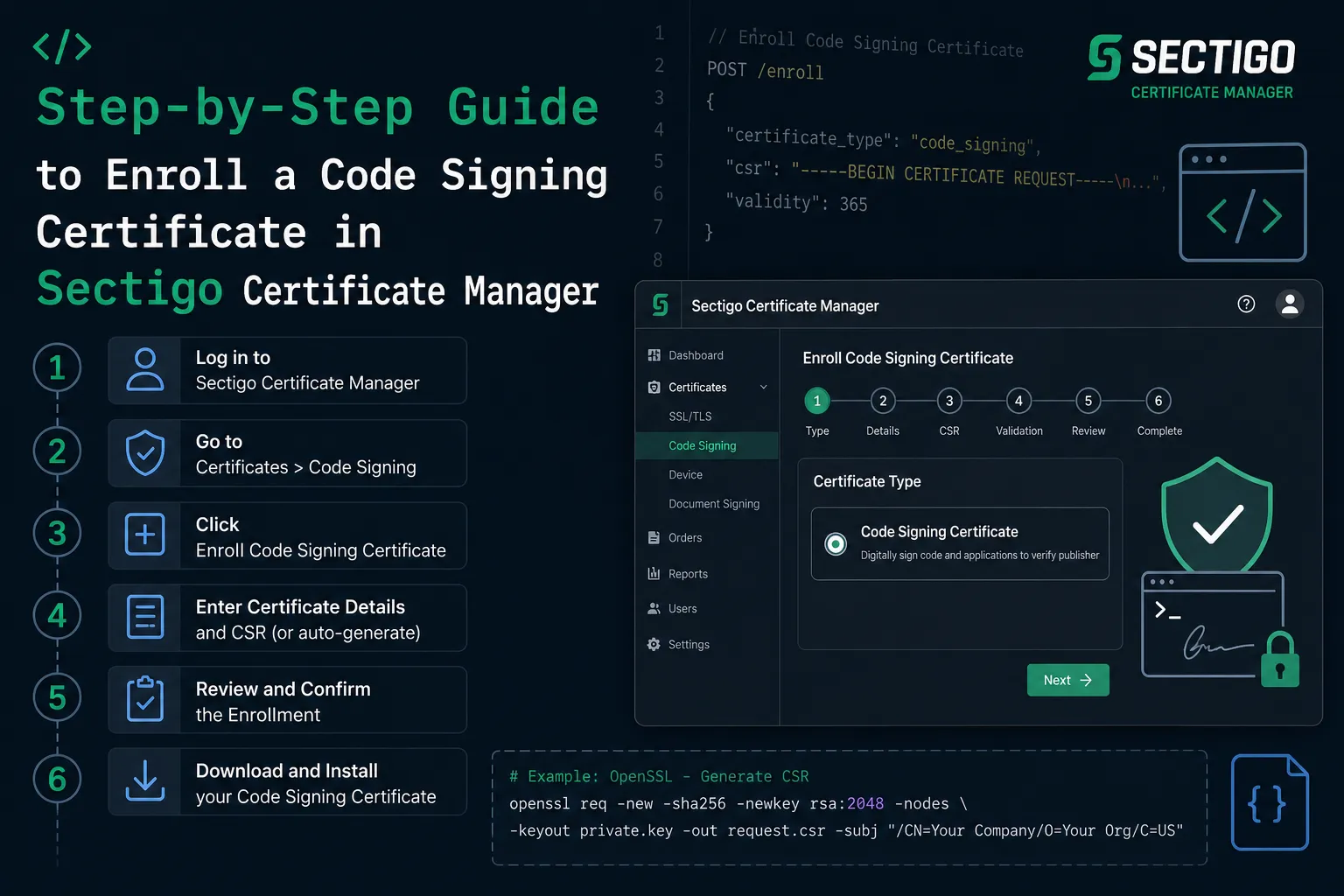
To enroll a code signing certificate in Sectigo Certificate Manager, an MRAO administrator must complete five sequential phases: create a certificate profile, delegate it to an organization, configure an enrollment form, send an invitation to the certificate requester, and submit a PEM-format CSR - with a Key Attestation file if your account requires it.
Each phase maps to a distinct area of the SCM interface. Skipping or mis-ordering any step causes enrollment to fail at submission. This guide covers every click in the correct sequence, the prerequisites that must be in place first, and the common errors that derail first-time enrollments.
What Are the Prerequisites Before You Start Enrollment?
Four conditions must be true before you open SCM. Check each one before proceeding, because a missing prerequisite cannot be resolved mid-enrollment.
- SCM administrator access (MRAO role).Certificate profile creation and enrollment form setup require MRAO-level privileges. A standard account cannot complete these steps.
- CSR generated in PEM format.Per Sectigo's official SCM knowledge base (December 2025), the CSR must be PEM-encoded before you reach the enrollment form. Submitting a DER-encoded file will produce an error.
- FIPS 140-2 Level 2 HSM (or equivalent) for key generation.CA/Browser Forum Code Signing Baseline Requirements, effective June 1, 2023, mandate that all code signing private keys be generated and stored on a certified hardware security module. This applies to both OV and EV certificates.
- Key Attestation enabled (if required).If your SCM account uses Key Attestation, Sectigo Support must enable it before you begin. Sectigo's SCM documentation confirms that attestation cannot be retrofitted after a certificate profile is already active.
For EV Code Signing specifically, organization and extension validation must be completed and approved by Sectigo before you submit the enrollment form. OV certificates do not carry this additional validation step.
How Do You Create a Certificate Profile in SCM?
The certificate profile defines the certificate authority backend, the certificate type, and the validity terms. Every enrollment in SCM flows through a profile, so this is the first action to complete.
- Log in to SCM using your MRAO administrator credentials.
- Navigate to Enrollment > Certificate Profilesin the left-hand menu.
- Click Addto open the new profile form.
- Complete all required fields: Name(descriptive, e.g. "OV Code Signing 2026"), CA Backend, Certificate Type (select "Code Signing Certificate"), Template (OV or EV), and Terms (validity period in months).
- Click Save. The profile now appears in your profile list.
How Are Public and Private Keys Generated?
Both keys are produced simultaneously by a cryptographic algorithm, with the private key chosen first as a random number, and the public key derived from it through a one-way mathematical operation. This means the public key can be calculated from the private key, but the reverse - can a private key be derived from a public key? - is computationally infeasible with current hardware given sufficient key sizes.
The two dominant algorithms in use today are:
- RSA (Rivest–Shamir–Adleman) selects two very large prime numbers, multiplies them together, and bases security on the difficulty of factoring that product. A 2048-bit RSA key is the current minimum for production use; NIST's 2024 post-quantum guidance recommends transitioning to 3072-bit or higher for long-lived certificates. RSA is widely supported but produces larger key sizes than ECC for equivalent security levels.
- ECC (Elliptic Curve Cryptography) uses the algebraic properties of elliptic curves over finite fields. A 256-bit ECC key provides roughly equivalent security to a 3072-bit RSA key - making ECC significantly faster for TLS handshakes and better suited to mobile and IoT environments. Most modern TLS 1.3 deployments default to ECC via the P-256 or X25519 curves.
- RSA vs ECC key generation differences come down to this tradeoff: RSA has broader legacy compatibility; ECC offers smaller keys, faster operations, and lower compute overhead. For new deployments in 2026, ECC is the preferred choice unless legacy system compatibility is required.
Choose OV for standard software publishers and EV for higher-trust scenarios where SmartScreen reputation is required on Windows. The template selection here determines the validation path and cannot be changed after the profile is saved.
How Do You Delegate the Certificate Profile to Your Organization?
A saved profile is not automatically available to your organization. Delegation is a separate step that activates the profile for use in enrollment forms tied to a specific organization.
- Navigate to Organization > Certificate Settings.
- Locate the toggle for Code Signing Certificatesand set it to enabled.
- Assign the newly created profileto the organization from the profile selector. Save the settings.
If you manage multiple organizations within SCM, repeat this delegation step for each organization that needs access to the profile. Profiles are not shared across organizations by default.
OV vs. EV Code Signing Certificates: Which Profile Template Do You Need?
Before setting up the enrollment form, confirm you have selected the correct template. The two certificate types differ in validation requirements, use cases, and SmartScreen behavior on Windows.
| Validation required | Organization identity only | Organization + extended identity + individual verification |
| Key storage requirement | FIPS 140-2 Level 2 HSM (post June 2023) | FIPS 140-2 Level 2 HSM (always required) |
| Windows SmartScreen | Builds reputation over time | Immediate SmartScreen reputation |
| Pre-submission requirement in SCM | None beyond profile creation | Org and extension validation must be approved first |
| Typical use case | Internal tools, enterprise deployments | Public software distribution, drivers, firmware |
How Do You Configure the Enrollment Form?
The enrollment form generates the URL that certificate requesters use to submit their CSR. Without a configured form, no invitation can be sent and no CSR can be received.
- Navigate to Enrollment > Enrollment Forms.
- Click Add (+)to create a new form.
- Set Typeto "Code Signing Certificate Enrollment Form". Enable Generate URL Extension so SCM produces a unique enrollment URL. Set Authentication to either Email Confirmation or Secret ID - Email Confirmation is the more common choice for managed environments.
- Click Save.
- To associate the form with an account: select the form → clickAccounts → click Add (+). Enter the account details and assign the certificate profile you created in Step 5.
SCM supports three additional enrollment methods beyond the self-enrollment form: REST API, Admin API, and CA connector. Sectigo's SCM administrator documentation describes all four methods, but the form-based path is the most widely used for individual or small-team enrollments.
How Do You Send an Enrollment Invitation?
Once the form is configured, the administrator sends an invitation that delivers the enrollment URL directly to the certificate requester's inbox. The invitation ties the request to a specific account and endpoint.
- Navigate to Certificates > Code Signing Certificates.
- Click Invitations → Add (+).
- Enter the recipient's email address, select the Enrollment Endpoint(the form you created), and confirm the Account associated with that endpoint.
- Click Send. SCM dispatches the invitation email immediately.
How Does the Requester Complete Enrollment?
The final phase happens on the requester's side. The requester clicks the enrollment link, fills in the form, and uploads the CSR and Key Attestation file.
- The recipient opens the invitation email and clicks the enrollment link. Email Confirmation authentication will require a verification click before proceeding.
- Fill in the enrollment form: Certificate Email(used as the Subject Alternative Name), First Name, Last Name, and the Certificate Term.
- Upload the CSR in PEM format. If the account requires Key Attestation, also upload the Key Attestation filegenerated by your HSM.
- Click Submit. SCM validates the CSR format and triggers the issuance workflow.
Security teams managing high-volume certificate operations often find that the enrollment form account-binding step (Step 13) is where first-time administrators get stuck. The form must be assigned to an account before the invitation can be sent - creating the form alone is not sufficient to generate a usable endpoint URL.
Key Takeaway and Next Step
Enrolling a code signing certificate in Sectigo Certificate Manager follows a fixed five-phase workflow: profile creation, organization delegation, enrollment form configuration, invitation dispatch, and CSR submission. Each phase depends on the one before it. Administrators who try to send invitations before binding a form to an account, or who submit a DER-format CSR instead of PEM, will encounter errors that require backing up in the workflow.
The most common gap in 2025–2026 deployments is HSM readiness. Because CA/Browser Forum Baseline Requirements (effective June 1, 2023) mandate FIPS 140-2 Level 2 hardware for all new code signing certificates, your key generation environment must be validated before you reach the SCM enrollment form. Confirm your HSM is supported by Sectigo's Key Attestation service — currently Luna Network HSM 7.x and YubiKey 5 FIPS Series — before starting this process.
For teams managing multiple certificates at scale, review Sectigo's Managing Code Signing Certificates documentation to understand bulk operations and REST API enrollment as an alternative to form-based enrollment.
PRACTITIONER'S NOTE
The step that most consistently delays enterprise rollouts is not the CSR or the HSM - it is the account binding on the enrollment form. Many administrators create and save the enrollment form, then send an invitation without completing the Accounts → Add step. The invitation email goes out, the requester clicks the link, and the form either shows no available certificate profiles or returns a validation error.
Always verify the form is bound to an account with a valid certificate profile before sending a single invitation. Open the form in SCM, navigate to the Accounts tab, and confirm the account and profile appear in the list. Thirty seconds of verification here saves hours of troubleshooting later.
For EV certificates specifically, confirm organization validation approval has been received from Sectigo via email before you begin enrollment. Submitting an EV form with pending validation will not fail immediately — but the certificate will sit in a pending issuance state until validation clears, which creates confusion about whether the enrollment itself failed.
– PKI Security Administrator | Based on CA/Browser Forum CSBRs and Sectigo SCM Administrator Guide v1.4
Frequently Asked Questions
What role do I need in SCM to enroll a code signing certificate?
You need MRAO (Master Registration Authority Officer) administrator access. MRAO is the highest administrator role in SCM and is required to create certificate profiles and configure enrollment forms. Delegated administrators at lower privilege levels cannot complete the profile creation steps.
Is Key Attestation mandatory for all SCM accounts?
Key Attestation is required only when your SCM account has been configured to enforce it. However, the underlying HSM requirement is universal: since June 1, 2023, the CA/Browser Forum Baseline Requirements for Code Signing Certificates mandate that all private keys be generated on a FIPS 140-2 Level 2 (or Common Criteria EAL 4+) certified hardware module, for both OV and EV certificates.
What CSR format does SCM require for code signing enrollment?
SCM requires a CSR in PEM (Privacy Enhanced Mail) format. This is a base64-encoded file that typically begins with "-----BEGIN CERTIFICATE REQUEST-----". DER-encoded CSRs are not accepted in the enrollment form and will return a format error.
Can the same certificate profile be used by multiple organizations?
No. A certificate profile must be individually delegated to each organization via Organization > Certificate Settings. When you save a profile, it is not automatically shared. Administrators managing multiple organizations must repeat the delegation step for each one.
What is the difference between Email Confirmation and Secret ID authentication on the enrollment form?
Email Confirmation sends a one-time link to the requester's inbox that they must verify before accessing the form - this suits most managed enterprise environments. Secret ID provides a static passphrase known to both the administrator and requester, which is more flexible for batch enrollments but carries a higher risk if the secret is shared insecurely.
Do I need to complete EV validation before creating the certificate profile?
No, you can create the EV profile at any time. But you cannot submit the enrollment form and receive an issued certificate until Sectigo has approved both the organization validation and the extended validation for your account. OV enrollment has no pre-approval requirement beyond having a valid SCM account and a configured profile.