
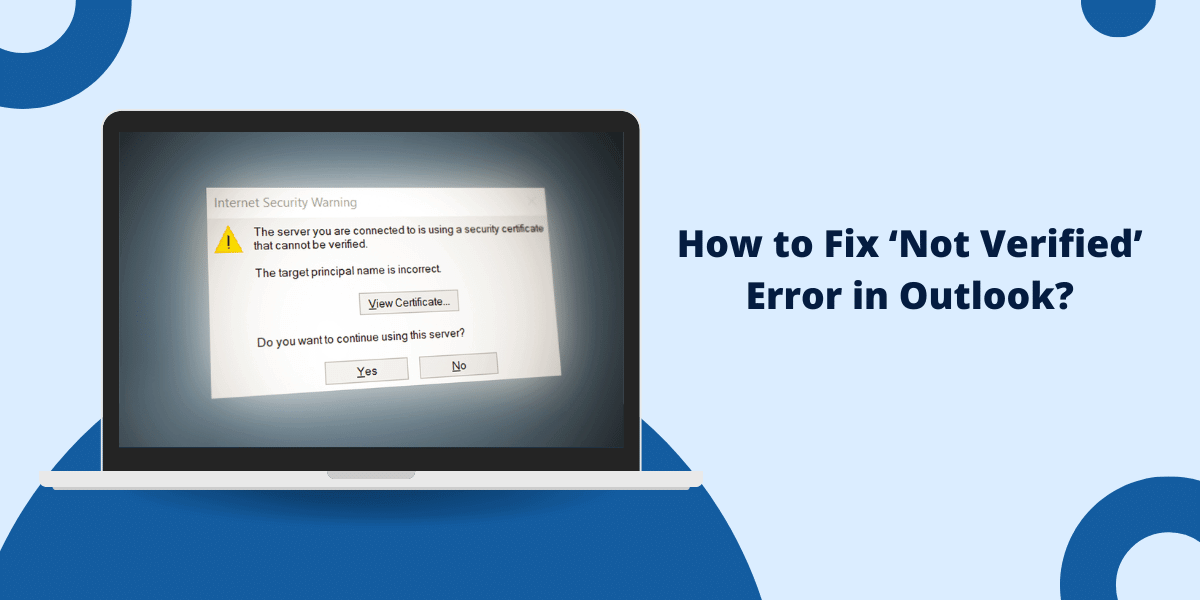
The "Not Verified" error in Outlook means your email client cannot confirm the identity of the mail server through its SSL/TLS certificate - blocking the encrypted connection between your device and Microsoft's servers. Fixing it usually comes down to one of four causes: outdated account settings, an expired or invalid certificate, a conflict with security software, or an incorrect date and time on your device. Most users resolve this in under ten minutes without contacting IT support.
According to a 2025 certificate management survey by Resilience Forward, 37.5% of enterprise service outages tied to certificate incidents stem specifically from expired certificates - making it the single most preventable cause of this class of disruption (July 2025).
What Does the 'Not Verified' Error in Outlook Actually Mean?
The "Not Verified" or "Certificate Not Secure" error appears when Outlook cannot validate the SSL/TLS certificate presented by your mail server. Every secure email connection requires a valid certificate issued by a trusted certificate authority (CA). When that certificate is expired, mismatched, or blocked by another program, Outlook refuses the connection and displays the error rather than risk exposing your data.
This is not a cosmetic warning. Proceeding past an unverified certificate means your email traffic could travel unencrypted, exposing login credentials and message content to interception on the same network.
What Causes the 'Not Verified' Error in Outlook?
Several distinct conditions trigger this error. Identifying which one applies to your situation determines the fastest fix:
- Expired or invalid certificate: The SSL certificate on your mail server has passed its expiry date or was issued for a different domain name
- Outdated account settings: Old server addresses or port numbers cached in Outlook no longer match your provider's current configuration
- Security software interference: Antivirus, firewall, or VPN software intercepts Outlook's connection and breaks the certificate chain validation
- Incorrect device date or time: Certificates are only valid within a specific time window; a wrong clock makes valid certificates appear expired
- Proxy or cache server misconfiguration: Traffic routed through a misconfigured proxy disrupts the certificate handshake before it reaches the mail server
- Email provider policy change: Providers occasionally update security requirements, invalidating older account certificates until settings are refreshed
- Mobile device management (MDM) policy changes: Corporate IT environments push certificate profiles through MDM tools; a policy update can invalidate existing device trust
How to Fix the 'Not Verified' Error on Outlook Desktop
Work through these steps in order. Each one addresses a specific root cause - start from the top and stop when the error clears.
Step 1: Update Your Outlook Account Settings
Stale or incorrect server settings are the most common cause on desktop. Even a single wrong port number prevents proper certificate validation.
- Open Outlook and go to File → Account Settings → Account Settings
- Select your email account and click Change
- Verify the incoming and outgoing server addresses match exactly what your email provider specifies
- Confirm port numbers - IMAP uses 993 (SSL), POP3 uses 995 (SSL), SMTP typically uses 587 (TLS) or 465 (SSL)
- Click More Settings → Advanced and confirm SSL/TLS encryption is enabled
- Click OK → Next → Finish and reopen Outlook to test
Step 2: Clear the SSL State in Outlook
If settings are correct but the error persists, Outlook may be caching a broken or outdated certificate.
- Go to File → Account Settings → select your account → Change → More Settings → Advanced
- Click Clear Secure Socket Layer (SSL) State
- Click OK, close Outlook completely, and restart your computer
- Reopen Outlook - it will pull fresh certificate data from the server on reconnect
Step 3: Adjust Your Security Software
Antivirus, firewall, and VPN applications sometimes perform SSL inspection by substituting their own certificate into the connection chain - which Outlook then flags as unverified.
- Add outlook.exe and msmapi32.exe to your antivirus and firewall allowed programs list
- Disable email scanning or HTTPS inspection features temporarily to test if they are the source of the conflict
- Allow outbound connections on ports 993, 995, and 587 through your firewall
- If using a VPN, disconnect it and check whether the error disappears - VPN routing is a frequent culprit with SSL certificate errors on corporate networks
Step 4: Adjust Outlook Privacy Settings
A specific combination of proxy connection settings can restore certificate trust when other steps have not resolved the issue.
- Go to File → Options → Trust Center → Trust Center Settings
- Click Connection
- Enable both Connect to services anonymously and Connect only to proxy servers
- Click OK and restart Outlook
Step 5: Request a New Certificate from Your Provider
If none of the above steps resolve the error, the certificate on the server side has expired or become invalid. Contact your IT team or email provider (Microsoft 365 support, Google Workspace, or your hosting provider) and request a reissued certificate for your account. Once they deploy the updated certificate, the error will clear automatically on your next Outlook connection.
How to Fix the 'Not Verified' Error on Outlook Mobile
Mobile troubleshooting follows a different path than desktop because certificate stores and account settings live in different locations.
Verify Account Settings on Your Device
Incorrect server details are as common on mobile as on desktop - and harder to spot because mobile apps often auto-configure with outdated values.
- Open your device's Settings → Mail (iOS) or Accounts (Android)
- Find your Outlook or Exchange account and tap to edit
- Confirm incoming and outgoing server names, encryption type, and port numbers match your provider's current specifications
- Save the changes and allow Outlook to reconnect
Fix Date and Time Settings
A wrong clock is one of the most frequently overlooked causes of certificate errors on mobile devices. Certificates carry a strict validity window - if your device clock is even a day off, a valid certificate will appear expired.
- Go to Settings → General → Date & Time (iOS) or Settings → System → Date & Time (Android)
- Enable Set Automatically to sync with network time
- Confirm the time zone is correct for your location
- Reopen Outlook and check whether the error is gone
Reset or Reinstall the Outlook App
Clearing cached certificate data at the app level resolves errors that survive account setting corrections.
- Force-quit Outlook if it is running in the background
- Go to Settings → Apps → Outlook and tap Clear Cache (Android) or offload and reinstall the app (iOS)
- Reopen Outlook and sign in again - the app will download fresh account and certificate data
Contact Your IT Team if on a Managed Device
Work accounts managed through mobile device management tools receive certificate profiles pushed by IT. If a policy update changed the required certificate and your device has not received the new profile, Outlook will show the Not Verified error until IT redeploys the updated configuration remotely.
How to Prevent the 'Not Verified' Error from Returning
Fixing the error once is straightforward. Keeping it from recurring requires a few habits:
- Keep Outlook updated on all devices: Microsoft regularly patches certificate compatibility issues in app updates
- Monitor certificate expiry dates: For self-managed domains, set a calendar reminder 30 days before your SSL certificate expires; renewal before expiry prevents any service interruption
- Keep device clocks on automatic sync: Network time synchronization prevents date-related certificate failures without any ongoing effort
- Limit unnecessary SSL interception: Only enable HTTPS inspection features in security software if your organization specifically requires it; unnecessary inspection creates more certificate conflicts than it prevents
- Use one trusted network path: Running Outlook through multiple VPNs, proxies, or gateways increases the risk of a certificate chain break; simplify your network path where possible
- Back up Outlook data regularly: If a certificate issue ever requires a full account reset, a current backup means no email data is lost
Frequently Asked Questions About the Outlook 'Not Verified' Error
Why does Outlook say "not verified" even after I updated my account settings?
Outdated cached certificate data can persist even after settings are corrected. Clear the SSL state under File → Account Settings → Change → More Settings → Advanced → Clear SSL State, then restart Outlook. If the error continues, your server-side certificate may have expired and requires renewal by your email provider or IT administrator.
How can I check whether my Outlook certificate is expired?
On Outlook desktop, go to Account Settings → Connection → Encrypted Connection to see the certificate name and expiry date. On mobile, your email administrator can look up the expiry date of the certificate deployed through your MDM solution - individual mobile apps do not expose this information directly.
Is it safe to keep using Outlook when the 'not verified' error appears?
No. An unverified connection means Outlook cannot confirm it is communicating with the legitimate mail server. Your email traffic, including login credentials and message content, travels without verified encryption and can be intercepted on shared or public networks. Fix the error before continuing to send sensitive information.
Does a VPN cause the Outlook 'not verified' error?
Yes, VPNs frequently cause this error. VPN software reroutes your connection through different servers, which can disrupt the certificate chain Outlook uses to verify the mail server. Disconnect the VPN and reopen Outlook - if the error disappears, the VPN configuration or its SSL inspection settings are the cause.
How do I renew an expired Outlook certificate?
If your organization manages its own mail server, obtain a renewed .pfx certificate file from your certificate authority and import it under Account Settings → Security in Outlook desktop. For Microsoft 365 or hosted email accounts, contact your provider's support team - they manage and renew certificates on the server side without requiring action from individual users.
Why does an incorrect date or time cause certificate errors?
SSL/TLS certificates are only valid during a specific time period defined at issuance. When your device clock is wrong, Outlook calculates the certificate's validity window using that incorrect time. A certificate that is genuinely valid may appear expired - or a certificate that has actually expired may appear valid. Enabling automatic time sync on your device eliminates this risk entirely.

Priya Mervana
 Verified Web Security Experts

Priya Mervana is working at SSLInsights.com as a web security expert with over 10 years of experience writing about encryption, SSL certificates, and online privacy. She aims to make complex security topics easily understandable for everyday internet users.