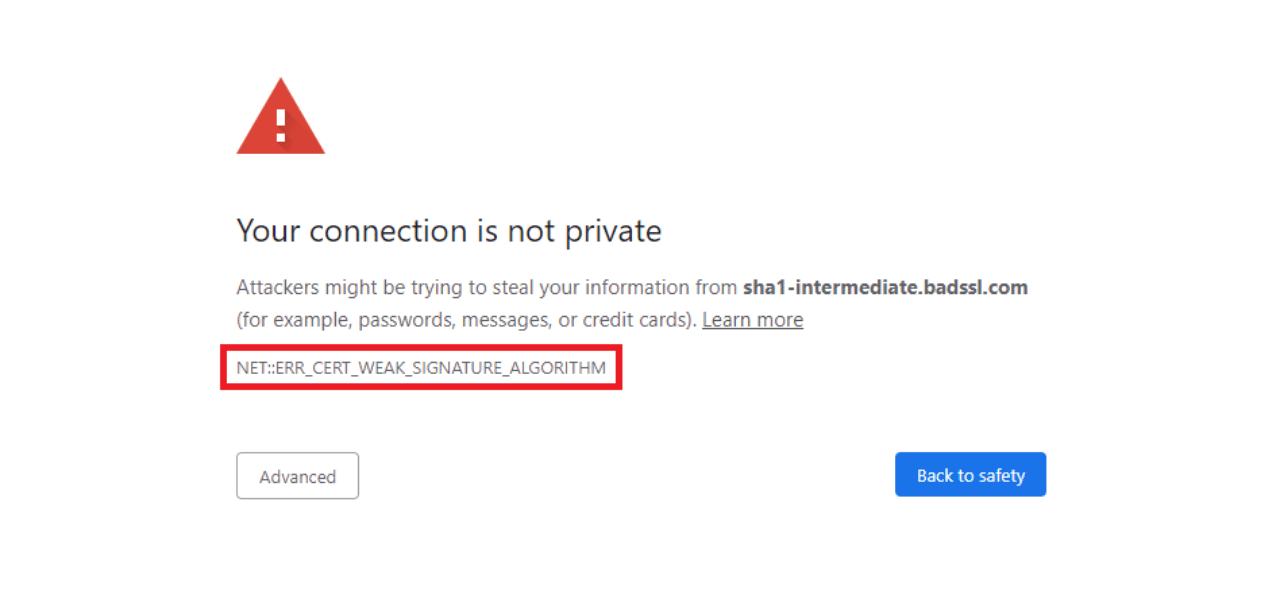

The "Cannot Communicate Using SSL" error on PS4 appears when the console fails to establish a secure connection with PlayStation Network or EA game servers. This typically happens due to an unlinked EA account, incorrect date/time settings, DNS conflicts, or a firewall blocking SSL traffic. Most cases resolve within 15–30 minutes by working through the fixes below.
What Causes the "Cannot Communicate Using SSL" Error on PS4?
The error signals a breakdown in the SSL (Secure Sockets Layer) handshake between your PS4 and the server it's trying to reach. Several distinct triggers can cause it:
- Unlinked EA account: The most common cause when playing EA titles like FIFA, Madden, Apex Legends, or NHL. Your PSN ID must be connected to an EA account with accepted Terms of Service.
- Wrong date/time settings: SSL certificates validate against system clocks. Even a 10-minute drift can break the handshake.
- DNS server issues: Your ISP's default DNS may be slow or unreliable, causing SSL timeouts.
- Firewall or router blocking SSL: Devices running Deep Packet Inspection, SonicWall SSL Control, or similar features can intercept and block PSN's SSL traffic.
- PSN server outages: Temporary service disruptions also trigger this message.
As of March 2025, PlayStation Network serves approximately 124 million monthly active users according to Statista, making server-side congestion a real and recurring factor behind connectivity errors.
How to Check If PSN Is Down Before Troubleshooting
Before changing any settings, verify that the problem isn't on Sony's end. Visit the official PlayStation Network Service Status page and check whether PSN services show any degraded or offline status. If an outage is listed, no local fix will help - you simply wait for Sony to restore service.
Fix 1: Link Your EA Account to PSN
This resolves the SSL error in the majority of EA game cases.
- On a PC, phone, or tablet, go to EA.com
- Click the Profile icon in the top-right corner and select Sign In
- Choose PlayStation as the login method
- Enter your PSN username and password
- Accept any pending Terms of Service agreements
- Restart your PS4 and relaunch the game
If your accounts were already linked, try unlinking and relinking them. Accepting updated EA Terms of Service after a version change is often enough to clear the error immediately.
Fix 2: Correct Your PS4 Date and Time Settings
SSL certificates include validity windows tied to system clocks. An incorrect date or time causes certificate validation to fail outright.
- Go to Settings > Date and Time
- Select Date and Time Settings
- Choose Set Using Internet
- If that fails, select Set Manually, enter the correct date and time, then switch back to Set Using Internet
After syncing, restart the console and test your connection again.
Fix 3: Change DNS Settings to Google or Cloudflare
Your default ISP DNS can block or slow down SSL handshakes with PSN servers. Switching to a public DNS often bypasses these issues.
- Go to Settings > Network > Set Up Internet Connection
- Choose Wi-Fi or LAN Cable based on your setup
- Select Custom
- Set IP Address to Automatic
- Set DHCP Host Name to Do Not Specify
- Set DNS Settings to Manual
- Primary DNS: 8.8.8.8 (Google) or 1.1.1.1 (Cloudflare)
- Secondary DNS: 8.8.4.4 or 1.0.0.1
- Set MTU Settings to Automatic
- Set Proxy Server to Do Not Use
Test the connection and retry the action that triggered the error.
Fix 4: Power Cycle Your Router and PS4
A router that has been running for days without a restart can develop NAT inconsistencies that disrupt SSL connections.
- Fully power off the PS4 (not Rest Mode)
- Hold the router's power button until the lights go off
- Unplug the router from the power source and wait 60–90 seconds
- Plug the router back in and wait for all indicator lights to stabilize
- Power on the PS4 and test the connection
This clears any session state or temporary routing errors without touching any configuration.
Fix 5: Disable SSL Control or Deep Packet Inspection on Your Router
Some routers - particularly SonicWall models and enterprise-grade hardware - include features that intercept SSL traffic. These features break PS4's SSL handshake with PSN.
For SonicWall devices:
- Open your browser and go to your SonicWall admin panel (typically 192.168.1.1)
- Log in with your admin credentials
- Navigate to Manage > Security Configuration > Firewall Settings > SSL Control
- Either disable SSL Control entirely or change the policy violation action from Block to Log only
- Save and restart the router
For other routers:
- Log in to your router admin panel
- Look for Deep Packet Inspection, HTTPS Inspection, or Content Filtering
- Disable or whitelist PSN traffic
- Save settings and restart
Fix 6: Enable UPnP on Your Router
UPnP (Universal Plug and Play) allows the PS4 to automatically open the ports it needs for PSN connections. Without it, NAT-related SSL failures are more likely.
- Log in to your router admin panel
- Go to Advanced Settings > NAT Forwarding (location varies by router brand)
- Find the UPnP submenu and enable it
- Save changes and restart both the router and PS4
Fix 7: Adjust MTU Settings
The Maximum Transmission Unit (MTU) controls the packet size your PS4 sends across the network. Setting it too high or leaving it on Auto when your ISP uses a smaller MTU can fragment packets and break SSL sessions.
- Go to Settings > Network > Set Up Internet Connection
- Choose your connection type and select Custom
- When you reach MTU Settings, select Manual
- Set the value to 1473 (a commonly effective value for PSN)
- Complete the setup and test the connection
Fix 8: Rebuild the PS4 Database in Safe Mode
Database corruption can cause persistent SSL errors that survive all network-level fixes. Rebuilding the database reorganizes stored data without deleting your saves.
- Fully shut down the PS4
- Hold the power button for approximately 7 seconds until you hear two beeps - this enters Safe Mode
- Connect your DualShock 4 via USB and press the PS button
- Select Rebuild Database from the Safe Mode menu
- Wait for the process to complete (10–40 minutes)
- Restart and test your connection
Fix 9: Update PS4 System Software
Outdated firmware can lack support for current SSL/TLS protocol versions required by PSN servers.
- Go to Settings > System Software Update
- Select Update Now
If the error prevents online updates, download the latest firmware from PlayStation's official support page onto a USB drive and install manually via Safe Mode.
What to Do If Nothing Works
If every fix above has failed, the issue is likely at the network infrastructure level. Contact your Internet Service Provider and ask whether they block or filter HTTPS/SSL traffic on PSN ports. Some ISPs - particularly satellite internet providers - have known latency and filtering issues that affect PSN SSL connections. Sony's own support recommends contacting your ISP if no local fix resolves the CE-34861-2 error code tied to this message.
As a last resort, PS4 initialization (factory reset) via Settings > Initialization > Initialize PS4 will clear all data including corrupted system files. Back up your saves to PS Plus cloud or a USB drive beforehand.
Quick Reference: PS4 SSL Error Fixes by Cause
|
Cause |
Best Fix |
Time to Try |
|
Unlinked EA account |
Relink PSN to EA.com and accept ToS |
5 minutes |
|
Wrong date/time |
Sync via internet in Date & Time settings |
2 minutes |
|
DNS issues |
Switch to Google DNS (8.8.8.8 / 8.8.4.4) |
5 minutes |
|
Router/modem glitch |
Full power cycle |
5 minutes |
|
Firewall blocking SSL |
Disable SSL Control or Deep Packet Inspection |
10 minutes |
|
Corrupted database |
Rebuild Database in Safe Mode |
10–40 minutes |
|
Outdated firmware |
Update system software |
15 minutes |
|
ISP-level block |
Contact your ISP |
Varies |
Still Getting the Error? Here's What to Try Next
The "Cannot Communicate Using SSL" error almost always has a fixable local cause. Start with the EA account relink, then correct date/time settings and DNS before moving to router-level changes. PSN serves over 124 million users monthly, and most connectivity issues resolve at the network configuration level rather than requiring hardware changes or factory resets.
If the error keeps returning after every fix, document which steps you tried and contact PlayStation Support directly - they can check for account-specific flags or region-level issues that no router setting can address.
Frequently Asked Questions (FAQs)
What does "Cannot Communicate Using SSL" mean on PS4?
It means your PS4 failed to complete a secure SSL handshake with PSN or a game server. The most common reasons are an unlinked EA account, a misconfigured router, or an incorrect system clock on the console.
Why does the PS4 SSL error only happen with EA games like FIFA or Madden?
EA games require your PSN account to be actively linked to an EA account with accepted Terms of Service. When that link breaks - often after EA updates its ToS - the SSL authentication step fails and the error appears before the game can connect online.
Does the PS4 SSL error mean my console is broken?
No. This is a network authentication issue, not a hardware fault. The error clears once the underlying connection problem - such as a DNS mismatch, firewall block, or unlinked account - is resolved through software or network settings.
Will changing DNS settings on PS4 affect my internet speed?
Switching to Google DNS (8.8.8.8) or Cloudflare DNS (1.1.1.1) can actually improve response times compared to many ISP default servers. It does not reduce bandwidth and poses no risk to your network or console.
Can a PSN outage cause the "Cannot Communicate Using SSL" error?
Yes. When PSN services are degraded or offline, the SSL handshake between your console and Sony's servers cannot complete. Always check the PlayStation Network Service Status page before troubleshooting locally.
Is it safe to disable Deep Packet Inspection on my router to fix PS4 SSL errors?
Disabling DPI removes one layer of network traffic filtering, which carries a minor security trade-off. For home networks used primarily for gaming, the practical risk is low - but if your router supports it, whitelisting PSN traffic instead of disabling DPI entirely is the more cautious approach.

Priya Mervana
 Verified Web Security Experts

Priya Mervana is working at SSLInsights.com as a web security expert with over 10 years of experience writing about encryption, SSL certificates, and online privacy. She aims to make complex security topics easily understandable for everyday internet users.