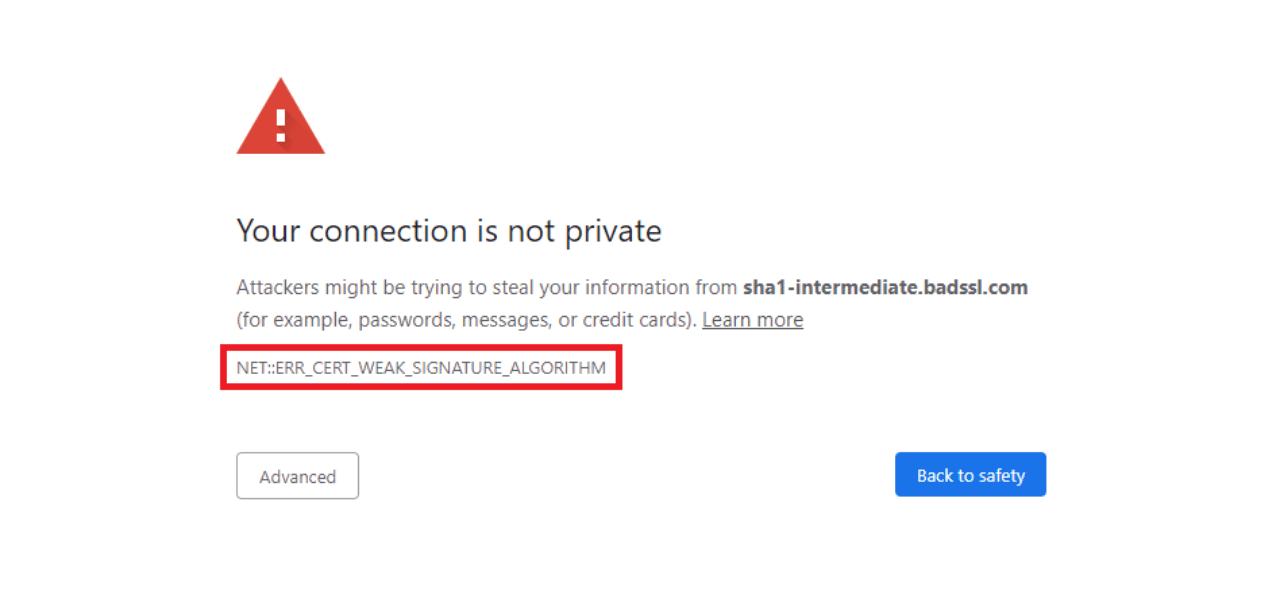

Encountering the “The identity of this website cannot be verified” error on Windows 10 can be alarming. This guide explains what causes the error, how it relates to SSL/TLS certificate verification, and step-by-step solutions to remove malware and restore browser safety.
Why Does This Website Identity Warning Appear? Key Causes Explained
This security alert typically appears when your browser detects issues with a website’s SSL or TLS certificate. These alerts protect users from potentially unsafe or compromised sites.
- Expired SSL/TLS certificates
- Unknown Certificate Authority (CA)
- Self-signed certificates
- Domain mismatches
- Outdated or unsupported SSL/TLS protocols
- Website compromise or malware issues
What Makes This Security Alert So Important to Address Immediately?
Modern browsers use certificate checks to authenticate website identity. Ignoring these errors increases the risk of malware infection or personal data theft.
Identifying Certificate Errors: Common Causes in an Easy Table
| Cause | Description | How to Identify |
| Expired Certificate | Certificate date is past expiry | Browser displays expiry notice |
| Unknown CA | Certificate issued by unrecognized authority | CA listed as "unknown" or "not trusted" |
| Self-Signed Certificate | Website uses its own, non-public certificate | Warning for self-signed certificates |
| Domain Mismatch | Certificate does not match website domain | “Domain mismatch” in browser warning |
| Insecure Protocol | Website uses outdated SSL/TLS (e.g., SSLv3) | Browser flags protocol as insecure |
| Malware Infection | Website or device compromised; fake alerts | Repeated pop-up warnings, system slow |
Step-by-Step Fix: Remove Certificate Error and Malware
Step 1: How to Boot Windows Safe Mode for Malicious Software Removal
If malware restricts access, restart the computer in Safe Mode with Networking:
- Press Win + R, type msconfig, hit Enter

- Go to Boot tab, check Safe Boot and Network
- Apply settings and restart

Step 2: Removing Suspicious Programs That Trigger This Warning
- Search Programs and Features from Windows Start menu
- Identify and uninstall recently added suspicious software
- Confirm any uninstall prompts
- Scan for pop-ups or unusual applications

Step 3: How to Clean Infected Browser Extensions (Chrome, Firefox, Edge)
Google Chrome
- Open Chrome, press Alt + F
- Extensions → Manage Extensions
- Remove suspicious extensions
Mozilla Firefox:
- Open Firefox, press Shift + Ctrl + A
- Find related extensions, click three dots, select Remove
Microsoft Edge:
- Click Extension icon, go to Manage extensions
- Find and remove malicious extensions
- Reset browser shortcuts for Chrome, Firefox, and Edge after cleaning extensions
Step 4: Running a Full Malware Scan to Secure Your System
- Open Windows Security from the Start menu
- Go to Virus & threat protection → Scan options
- Choose Full scan, then click Scan
Alternatively, use trusted antimalware like ESET HOME Security Essential for deeper scanning and multilayer protection. Remove or quarantine any flagged files or programs.
Step 5: Reset Your Browsers and Enable Security Settings for Best Protection
- After removing malware and extensions, reset browsers to default settings
- Delete old browser shortcuts, create new ones
- Set up web browser filters and enable advanced security settings
Tip: Enable Windows Firewall for ongoing protection and schedule regular scans to maintain security.
Quick Checklist: What You Must Do to Fix This Issue
- Always investigate unexpected security alerts before clicking or installing anything
- Remove unknown or suspicious software using Windows tools
- Clean browser extensions in Chrome, Firefox, and Edge
- Use comprehensive antimalware to scan system files
- Reset all browsers, create fresh shortcuts, and enable firewalls
- Schedule periodic scans to safeguard system integrity
Pro Tips to Avoid Fake Security Warnings and Stay Safe Online
- Never trust random pop-ups claiming urgent issues; verify with proper antivirus software
- Keep your operating system and browsers updated
- Avoid downloading files or clicking links from untrusted sources
- Use reliable, multilayer security solutions (such as ESET HOME Security Essential)
- Monitor browser settings and extensions regularly
Troubleshooting: What to Do When You See This Identity Warning
| Symptom | Troubleshooting Steps | Resolution |
| Pop-up: "identity cannot be verified" | Reboot in Safe Mode, uninstall suspicious apps | Pop-up removed |
| Multiple certificate errors | Check certificate, remove malware, scan PC | Error eliminated |
| Extension causes browser issues | Remove infected extension, reset shortcuts | Browsing restored |
| Persistent system warnings | Full security scan, reset browsers, enable firewall | System clean and safe |
Final Thoughts
"The identity of this website cannot be verified" isn’t just a minor annoyance—it’s a warning to protect yourself from insecure sites and possible malware attacks. Take immediate action: clean your system, update software, and secure browsers for ongoing protection.
Frequently Asked Questions (FAQs)
What does "The identity of this website cannot be verified" mean?
This error indicates the browser cannot confirm the website’s SSL/TLS certificate is valid, trusted, or properly configured. It protects users from potentially unsafe or compromised websites.
What are common causes of this website identity verification error?
Common causes include expired or self-signed certificates, unknown certificate authorities, domain mismatch, outdated SSL/TLS protocols, or malware infections affecting system security.
How can I safely fix this error on my Windows 10 PC?
Start by booting into Safe Mode with networking, uninstall suspicious programs, remove infected browser extensions, run a full malware scan, reset your browsers, and enable firewall protection.
Why do malicious browser extensions cause identity verification errors?
Infected extensions can interfere with SSL certificate validation or inject malicious scripts, triggering security warnings. Removing these extensions restores browser integrity.
How do I perform a full malware scan on Windows 10?
Use Windows Security’s Virus & threat protection full scan option or a trusted third-party antivirus like ESET HOME Security Essential to scan and remove malware causing errors.
Can outdated SSL/TLS protocols cause website identity warnings?
Yes, websites using old or unsupported SSL/TLS protocol versions (e.g., SSLv3) trigger browser warnings as modern browsers require secure protocols to verify identities.
How can I prevent "The identity of this website cannot be verified" errors in the future?
Keep your operating system and browsers updated, avoid clicking suspicious links, regularly scan for malware, remove unknown programs and extensions, and maintain active firewall protection.

Priya Mervana
 Verified Web Security Experts

Priya Mervana is working at SSLInsights.com as a web security expert with over 10 years of experience writing about encryption, SSL certificates, and online privacy. She aims to make complex security topics easily understandable for everyday internet users.