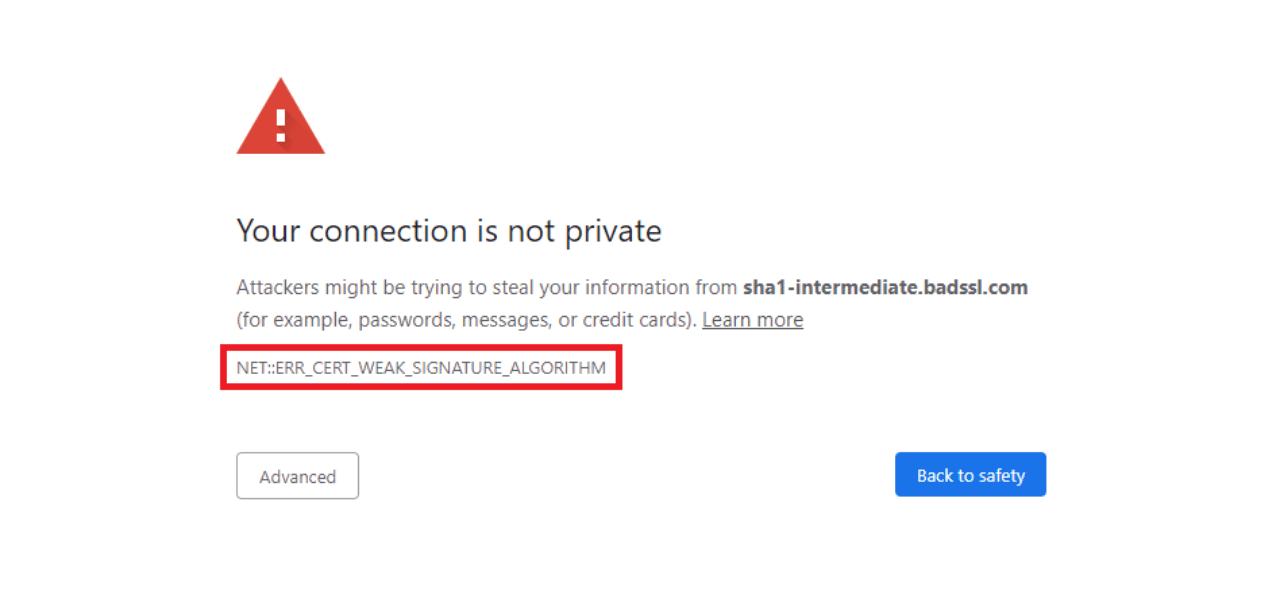

Flutter SSL handshake failure on Android occurs when the Dart runtime cannot verify a server's SSL certificate during a secure HTTPS connection. Android stores trusted root certificates at /system/etc/security/cacerts, and Flutter reads from this path via the BoringSSL library. Flutter developers targeting Android 13 and below must address certificate trust, TLS version support, and certificate chain completeness to resolve this error.
What Causes Flutter SSL Handshake Failure on Android?
Flutter SSL handshake failure on Android has four distinct root causes. Flutter's Dart runtime loads trusted root certificates from /system/etc/security/cacerts on Android using the BoringSSL library - not the system's Conscrypt layer used by native apps. This means certificates trusted by Chrome or native Android apps are not automatically trusted by Flutter. For a full explanation of how this process works, see our guide on the SSL/TLS handshake process.
The four root causes of this error are:
- Unknown or untrusted Certificate Authority (CA): The server's certificate is signed by a CA not in Android's system root store at the time the OS shipped.
- Missing intermediate certificate: The server sends only its leaf certificate, leaving a gap in the chain that Android cannot bridge automatically. Learn more about how a missing intermediate certificate breaks TLS connections.
- Unsupported TLS version: Android devices running API level 20 (Android 4.4) and below do not enable TLS 1.2 by default, causing handshake failure against servers that require TLS 1.2 or higher.
- Self-signed certificate: The certificate was not issued by a public CA, so Android rejects it unless the app explicitly trusts the certificate.
For a broader view of handshake failures across platforms, the SSL handshake failed error guide covers server-side and client-side diagnostics in detail.
How to Diagnose the Exact Flutter SSL Error
Diagnosing the exact cause requires reading the full error message from your Flutter log. Three distinct messages identify three distinct problems:
| Error Message | Root Cause | Primary Fix |
| CERTIFICATE_VERIFY_FAILED: unable to get local issuer certificate | Unknown or untrusted CA | Add Network Security Config or embed certificate |
| Trust anchor for certification path not found | Missing intermediate CA or self-signed cert | Fix server certificate chain |
| SSLHandshakeException: SSL handshake aborted | TLS version not supported (API < 21) | Enable TLS 1.2 in MainActivity.kt |
Run your Flutter app in debug mode and check the full stack trace in your terminal. The BoringSSL error message in parentheses after OS Error identifies the exact failure type. Always match your fix to the specific error - applying the wrong fix wastes time and can introduce security gaps.
Fix 1: Use Android Network Security Configuration
Network Security Config is the correct Android approach for trusting custom or self-signed certificates in Flutter apps. This method works on Android 7.0 (API 24) and above without any Dart-side changes.
Follow these four steps:
- Create the file res/xml/network_security_config.xml in your Android project with a <trust-anchors> entry pointing to your certificate stored in res/raw/.
- Add the certificate file (in PEM or DER format) to android/app/src/main/res/raw/my_cert.pem.
- Reference the config file in xml using the android:networkSecurityConfig attribute on the <application> tag.
- Rebuild the app with flutter clean followed by flutter run.
A basic network_security_config.xml for a custom CA looks like this:
<?xml version="1.0" encoding="utf-8"?>
<network-security-config>
 <domain-config>
  <domain includeSubdomains="true">api.example.com</domain>
  <trust-anchors>
   <certificates src="@raw/my_cert" />
  </trust-anchors>
 </domain-config>
</network-security-config>
According to the Android Network Security Configuration documentation (Android Developers, March 2025), apps targeting Android 6.0 (API 23) and below trust user-added CAs by default, while apps targeting API 24 and above do not - making this config essential for any app supporting a range of Android versions.
Fix 2: Enable TLS 1.2 for Older Android Devices
TLS 1.2 support on older Android requires a native-side fix in your Flutter app's MainActivity.kt file. Android devices running API level 20 and below do not enable TLS 1.2 by default, causing the SSL handshake aborted error on modern servers.
Update your MainActivity.kt to explicitly enable TLS 1.2 at launch:
class MainActivity: FlutterActivity() {
  override fun onCreate(savedInstanceState: Bundle?) {
    super.onCreate(savedInstanceState)
    if (Build.VERSION.SDK_INT < Build.VERSION_CODES.LOLLIPOP) {
      enableTLS12()
    }
  }
  private fun enableTLS12() {
    val sc = SSLContext.getInstance("TLSv1.2")
    sc.init(null, null, SecureRandom())
    HttpsURLConnection.setDefaultSSLSocketFactory(sc.socketFactory)
  }
}
This fix targets only devices below API 21. Devices running Android 5.1 (Lollipop) and above enable TLS 1.2 automatically, so this block does not affect them.
Fix 3: Embed and Trust a Certificate in Dart Code (Dio)
Embedding a certificate in Dart code is the most reliable fix for production apps using a self-signed certificate or a CA not yet present in older Android root stores. This approach configures the Dio HTTP client to trust a specific certificate loaded from the app's assets.
Follow these three steps:
- Place your server's fullchain.pem inside assets/certificates/ and declare the path in pubspec.yaml under the flutter: assets: section.
- In your Dio client setup, load the certificate and apply it to a custom SecurityContext so only your trusted certificate is accepted.
- Pass the custom HttpClient to the Dio IOHttpClientAdapter using the onHttpClientCreate callback.
According to Flutter Dart documentation on SecurityContext, Flutter reads its root CA store on Android from /system/etc/security/cacerts. Because this store is part of the read-only system partition, it only changes with a full OS update. Apps targeting devices that shipped before a new root CA was added must embed the certificate or use Network Security Config to bridge the gap.
Flutter BoringSSL certificate verification happens entirely within the BoringSSL native library, independently of Android's Conscrypt layer. This is why native Android apps and Chrome may trust a certificate that Flutter rejects - they use different verification stacks.
Fix 4: Verify and Repair the Server Certificate Chain
Flutter HTTPS connection Android fix is not always a client-side problem. If the server does not send the full certificate chain - including all intermediate certificates - Android terminates the handshake with the Trust anchor for certification path not found error.
Check your server's certificate chain with:
openssl s_client -connect api.example.com:443 -showcerts
A correct chain shows three or four certificates under the Certificate chain section. A broken chain shows only one. For Nginx servers, ensure your SSL certificate file contains both the leaf certificate and all intermediate certificates concatenated in order.
Your server's ssl_protocols directive must include TLS 1.2 and TLS 1.3 to support all Android versions your app targets. Verify this with:
ssl_protocols TLSv1.2 TLSv1.3;
ssl_prefer_server_ciphers on;
Common Mistakes to Avoid
Three mistakes cause more Flutter SSL failures to persist than any root cause:
- Using badCertificateCallback => true - this disables all SSL verification in production and exposes users to man-in-the-middle attacks. Never use this outside a local development environment.
- Applying Network Security Config but not rebuilding - the config is read at install time. Always run flutter clean and rebuild after any AndroidManifest.xml or network_security_config.xml change.
- Pinning a single certificate without a backup - certificate pinning against one leaf certificate breaks the app for all users the moment the server rotates its certificate. Pin to intermediate or root CA digests instead.
Frequently Asked Questions About Flutter SSL Handshake Failure
What causes SSL handshake failure in Flutter on Android?
Flutter SSL handshake failure Android is caused by one of four issues: an untrusted Certificate Authority, a missing intermediate certificate in the server's chain, TLS 1.2 not being enabled on Android API 20 and below, or a self-signed certificate not explicitly trusted by the app. Flutter uses the BoringSSL library to verify certificates from the Android system root store at /system/etc/security/cacerts, which is separate from the verification stack used by Chrome and native Android apps.
How do I fix HandshakeException in Flutter Android?
Fix HandshakeException certificate verify failed Flutter by first identifying the exact error message in your debug log. Use Android Network Security Config to trust a custom or self-signed CA, enable TLS 1.2 in MainActivity.kt for devices running API 20 and below, or embed the server's certificate directly in your Dart code using SecurityContext and Dio's IOHttpClientAdapter.
Why does my Flutter app fail SSL on older Android devices but not new ones?
Older Android devices shipped with a root certificate store that does not include newer root CAs added after the OS was built. TLS 1.2 Android older devices Flutter is also a factor - devices on Android API 20 and below do not enable TLS 1.2 by default. Because the system root store is stored on the read-only /system partition, it only updates with a full OS update, which many older devices never receive.
How to fix CERTIFICATE_VERIFY_FAILED in Flutter?
Fix trust anchor certification path not found Flutter by checking three things in order: verify the server sends a complete certificate chain using openssl s_client, add the issuing CA to your app's Network Security Config, and if the CA is a newer root not present on older devices, embed the full certificate chain in your Flutter assets and configure a custom SecurityContext.
What is the Flutter SSL trust store on Android?
Flutter's Android root certificate store Flutter is the system CA store located at /system/etc/security/cacerts on the device. Flutter's Dart runtime loads certificates from this path directly via BoringSSL, bypassing Android's Conscrypt layer. This means Flutter trusts only the CAs that were bundled into the Android OS at the time the device shipped, unless you explicitly add more trusted CAs through Network Security Config or a custom SecurityContext.
How do I enable TLS 1.2 on older Android in Flutter?
Enable Flutter Dio SSL certificate error prevention on older devices by adding a TLS 1.2 enforcement block to MainActivity.kt. Check the API level with Build.VERSION.SDK_INT < Build.VERSION_CODES.LOLLIPOP and call SSLContext.getInstance("TLSv1.2").init(null, null, SecureRandom()) inside a try-catch block. This forces TLS 1.2 for all HTTPS connections made through HttpsURLConnection for devices on Android 4.4 and below.

Priya Mervana
 Verified Web Security Experts

Priya Mervana is working at SSLInsights.com as a web security expert with over 10 years of experience writing about encryption, SSL certificates, and online privacy. She aims to make complex security topics easily understandable for everyday internet users.