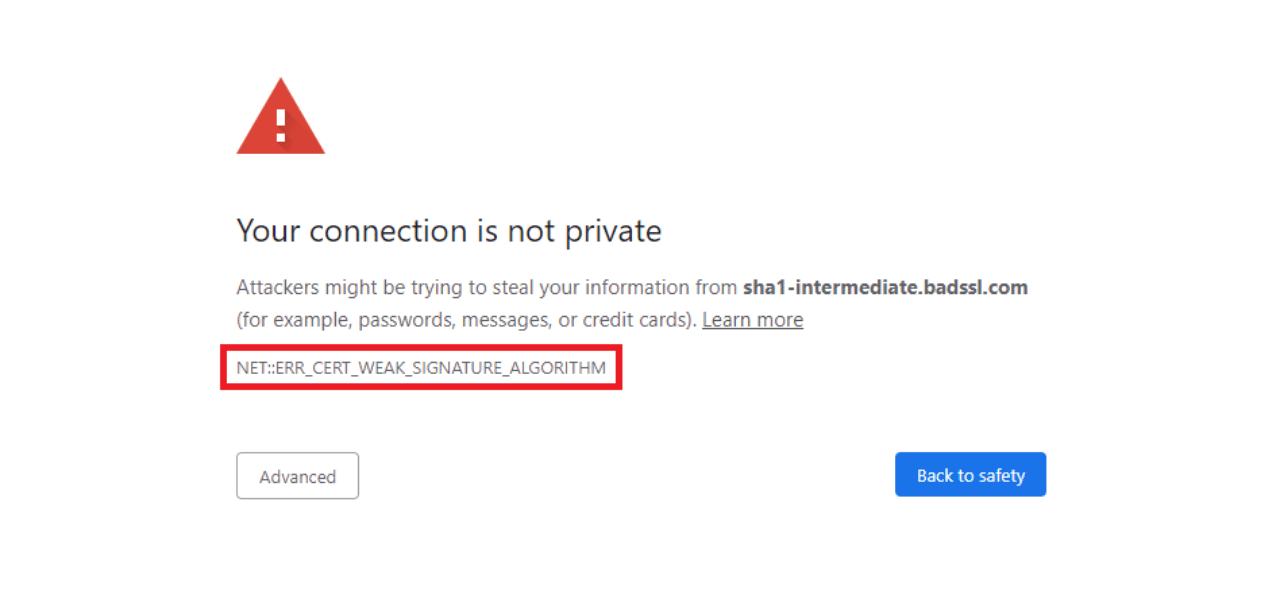

A 502 Bad Gateway error means one server received an invalid response from another server while processing your request. The gateway or proxy server - sitting between your browser and the origin server - got back something it could not use. Most 502 errors come from the origin server being down, overloaded, or misconfigured, not from your browser or network. Because the problem sits on the server side, the fix depends on whether you are the site visitor or the website owner.
What Is a 502 Bad Gateway Error?
A 502 Bad Gateway error is an HTTP status code that tells the client a server acting as a gateway or proxy received an invalid or empty response from an upstream server. It is different from a 500 Internal Server Error, which originates in the same server handling the request. With a 502, the problem lies upstream - in the backend application server, database, or another service the gateway depends on.
What Causes a 502 Bad Gateway Error?
A 502 Bad Gateway error occurs when the upstream server fails to send a valid response. Several distinct problems produce this result, and identifying the correct one is the fastest path to a fix.
The most common causes include:
- Overloaded origin server: High traffic spikes exhaust server resources, causing the upstream server to time out or refuse connections before responding.
- Application server crash: PHP-FPM, Node.js, Python WSGI, or other application processes crash and stop accepting connections, so Nginx or Apache gets nothing back.
- Misconfigured reverse proxy: A wrong upstream address, port, or socket path in your Nginx or Apache config sends requests to a location that does not exist.
- Firewall blocking upstream traffic: A firewall or security group rule blocks the gateway from reaching the backend server on the required port.
- DNS resolution failure: The gateway cannot resolve the backend hostname, so no connection ever forms.
- SSL/TLS mismatch between servers: When the proxy connects to the backend over HTTPS and the backend certificate is invalid or mismatched, the connection fails.
| Cause | Where It Appears | Typical Fix |
|---|---|---|
| App server crash | Nginx error log | Restart application process |
| Wrong upstream config | Nginx/Apache config file | Correct socket or port |
| Overloaded server | Server CPU/memory metrics | Scale resources or optimize app |
| Firewall block | Network security group | Open backend port in firewall |
| DNS failure | Upstream resolution error | Fix DNS record for backend host |
Each cause above produces similar error messages in the browser, so always check the server logs first to confirm the real trigger.
How Do You Fix a 502 Error as a Site Visitor?
As a visitor, you have no access to the server, but several client-side steps can resolve temporary 502 errors caused by cached data or transient network problems.
Work through these steps in order:
- Reload the page: Press F5 or Ctrl+R. Many 502 errors are temporary and disappear after the server recovers within seconds.
- Clear browser cache and cookies: Cached responses can prevent your browser from receiving a fresh connection. In Chrome, press Ctrl+Shift+Delete, select "Cached images and files," and clear.
- Try a different browser or device: This rules out local browser issues and confirms whether the problem is site-wide.
- Flush DNS cache: On Windows, open Command Prompt and run: ipconfig /flushdns. On macOS, run: sudo dscacheutil -flushcache && sudo killall -HUP mDNSResponder.
- Use a VPN or different network: Some ISPs cache bad DNS records, and switching networks routes your request differently.
- Check downtime checkers: Services like Downdetector or IsItDownRightNow confirm whether others are experiencing the same error.
If the error persists after all six steps, the problem is on the server side. Wait 10–15 minutes and try again, or contact the website owner.
How Do You Fix a 502 Error as a Website Owner or Admin?
Server-side 502 fixes require access to logs, configuration files, and the server environment. Start with logs - they almost always tell you what went wrong within the first 30 seconds of investigation.
Step 1: Check Your Error Logs
Open your web server error log first. For Nginx on most Linux systems, run: tail -n 50 /var/log/nginx/error.log. For Apache, run: tail -n 50 /var/log/apache2/error.log. Look for phrases like "connect() failed," "upstream timed out," or "no live upstreams." These tell you exactly which upstream is failing.
Step 2: Verify the Application Process Is Running
A crashed application server is the single most frequent 502 cause on managed stacks. Check whether your app process is alive:
- PHP-FPM: Run systemctl status php8.2-fpm (adjust version) or ps aux | grep php-fpm
- Node.js: Run ps aux | grep node or check your process manager like PM2 with pm2 status
- Python (Gunicorn): Run systemctl status gunicorn or ps aux | grep gunicorn
- Ruby (Puma/Unicorn): Run ps aux | grep puma
If the process is not running, restart it. For PHP-FPM: sudo systemctl restart php8.2-fpm. For PM2: pm2 restart all.
Step 3: Confirm the Upstream Address Is Correct
A misconfigured proxy_pass or ProxyPass directive sends traffic nowhere. Check your Nginx upstream block or location block. For example, if your Node app runs on port 3000, your config should read: proxy_pass http://127.0.0.1:3000;. A wrong port like 3001 or an incorrect socket path produces an immediate 502. After any config change, test with nginx -t before reloading.
Step 4: Adjust Upstream Timeout Values
Slow applications time out at the gateway before they finish processing. In Nginx, increase the timeout values in your server block:
- proxy_connect_timeout 60s;
- proxy_send_timeout 60s;
- proxy_read_timeout 60s;
For Apache, adjust ProxyTimeout in your VirtualHost. The right value depends on your slowest legitimate request - set it 20–30 seconds above that threshold.
Step 5: Check Firewall and Security Group Rules
If your gateway and backend server run on separate hosts, a firewall rule may block the upstream connection. On Linux, check active rules with: sudo iptables -L -n or sudo ufw status. In cloud environments like AWS or GCP, verify the security group allows inbound traffic on the backend port from the gateway server's IP address. A blocked port returns nothing to the proxy, which then issues a 502.
Connection errors share common patterns across server setups. If your upstream connection drops during the TLS negotiation phase, you may also encounter an SSL handshake failure that produces a 502 in your proxy logs rather than the browser showing a certificate error directly.
How Do You Fix a 502 Error in Nginx Specifically?
Nginx is the most common proxy server producing 502 errors, and its configuration gives you precise control over upstream behavior.
These Nginx-specific fixes resolve the majority of 502 cases:
- Increase worker_processes and worker_connections: Low connection limits cause the proxy to drop upstream requests under load. Set worker_processes to auto and worker_connections to 1024 or higher in nginx.conf.
- Set keepalive on upstream connections: Add keepalive 32; inside your upstream block. This reuses connections to the backend instead of opening a new one per request, which reduces timeout risk.
- Add the next upstream directive: Use proxy_next_upstream error timeout http_502; to send failed requests to a backup upstream instead of returning 502 immediately.
- Enable upstream health checks: With Nginx Plus, use health_check; in your location block. With open-source Nginx, use the ngx_http_upstream_check_module for passive health monitoring.
| Nginx Directive | Purpose |
|---|---|
| proxy_connect_timeout | Max time to connect to upstream |
| proxy_read_timeout | Max time to receive response from upstream |
| proxy_next_upstream | Action when upstream fails (retry or error) |
| keepalive | Persistent upstream connections |
| worker_connections | Max simultaneous connections per worker |
After changing any of these values, always run nginx -t to validate the config before issuing sudo systemctl reload nginx.
Does a CDN or Cloudflare Cause 502 Errors?
Yes - when Cloudflare or another CDN sits in front of your origin server, Cloudflare acts as the gateway. A 502 from Cloudflare means its edge network could not reach your origin, not that Cloudflare itself is broken.
To diagnose CDN-related 502 errors:
- Temporarily pause Cloudflare (in the Cloudflare dashboard under Overview > Advanced Actions > Pause Cloudflare on Site). If the site loads, the origin is fine and the problem is how Cloudflare connects to it.
- Check origin server logs for Cloudflare IP ranges making requests. Confirm your server accepts traffic from the published Cloudflare IP ranges.
- Verify your SSL mode in Cloudflare matches your origin setup. Using "Full (Strict)" requires a valid certificate on your origin. Using "Flexible" when your origin expects HTTPS connections can produce 502s.
If Cloudflare reports a 502 alongside an SSL error, your origin certificate may be the actual trigger. Reviewing how to resolve a connection timed out error can help when Cloudflare logs show the connection reaching your server but stalling before a response.
What Is the Difference Between a 502 and Other 5xx Errors?
Each 5xx error signals a different server-side failure point. Knowing which error you have prevents wasted time investigating the wrong layer.
After changing any of these values, always run nginx -t to validate the config before issuing sudo systemctl reload nginx.
Does a CDN or Cloudflare Cause 502 Errors?
Yes - when Cloudflare or another CDN sits in front of your origin server, Cloudflare acts as the gateway. A 502 from Cloudflare means its edge network could not reach your origin, not that Cloudflare itself is broken.
To diagnose CDN-related 502 errors:
| Error Code | Meaning | Where the Problem Sits |
|---|---|---|
| 500 Internal Server Error | Generic server failure | Origin server (application code or config) |
| 502 Bad Gateway | Invalid response from upstream | Upstream server behind the proxy |
| 503 Service Unavailable | Server temporarily overloaded or down | Origin server (capacity or maintenance) |
| 504 Gateway Timeout | Upstream server too slow to respond | Upstream server response time |
A 502 and a 504 often come from the same root cause - an overloaded upstream - but the distinction matters. A 502 means the upstream returned something invalid or refused the connection. A 504 means the upstream was reachable but took too long. The fix differs: 502s often need a process restart, while 504s usually need timeout adjustments.
Final Words
Fixing a 502 Bad Gateway error starts with identifying where in the server chain the failure occurs. For most stacks, the answer lives in the error log within the first 30 seconds of investigation. Visitors should reload, clear cache, and check external status tools before assuming the site is fully down. Admins should verify the application process is running, confirm the proxy configuration points to the correct upstream address, and adjust timeout values before looking further.
As of 2026, container-based deployments and multi-layer CDN architectures have made 502 debugging slightly more layered - but the same fundamentals apply. Check logs, verify the upstream is alive, confirm the gateway config is correct. Start there, and most 502 errors resolve quickly.
Frequently Asked Questions About 502 Error
How long does a 502 error last?
A 502 error caused by a traffic spike or temporary server crash typically resolves within 30 seconds to a few minutes once the server recovers or the application restarts. Persistent 502 errors lasting more than 5 minutes indicate a configuration problem or a process that needs manual intervention to restart.
Is a 502 error the fault of the website or my internet connection?
A 502 error is almost always the fault of the website's server infrastructure. Your browser correctly sent the request to the gateway, but the gateway could not get a valid response from the backend. Your internet connection is not the cause - if it were, you would see a connection timeout or DNS error instead.
Can a WordPress plugin cause a 502 error?
Yes. A poorly coded plugin can exhaust PHP memory or trigger an infinite loop, causing PHP-FPM to crash or time out. The result is a 502 at the Nginx or Apache proxy layer. Deactivating plugins via FTP (by renaming the /wp-content/plugins/ folder) and reactivating them one at a time identifies the culprit.
Why do I get a 502 only on certain pages or after certain actions?
Selective 502 errors usually point to a resource-intensive operation on specific pages - database queries, external API calls, or image processing - that exceeds the upstream timeout. Profiling those specific requests with application performance monitoring tools reveals where the bottleneck sits.
Does clearing cache fix a 502 error?
Clearing browser cache can fix a 502 only if your browser cached a previous 502 response. Most browsers do not cache 502 errors by default, so this step rarely resolves the issue. The more productive step is checking your CDN or server-side cache - Varnish, Redis, or Cloudflare caching - which can serve stale 502 responses for extended periods.
What does "upstream connect error or disconnect/reset before headers" mean in a 502?
This specific Nginx error message means the upstream server closed the connection before sending any HTTP headers. The most common causes are the application process crashing mid-connection, a timeout configured too short, or a network-level reset from a firewall or load balancer. Check the upstream process logs at the exact timestamp the error appears.

Priya Mervana
 Verified Web Security Experts

Priya Mervana is working at SSLInsights.com as a web security expert with over 10 years of experience writing about encryption, SSL certificates, and online privacy. She aims to make complex security topics easily understandable for everyday internet users.