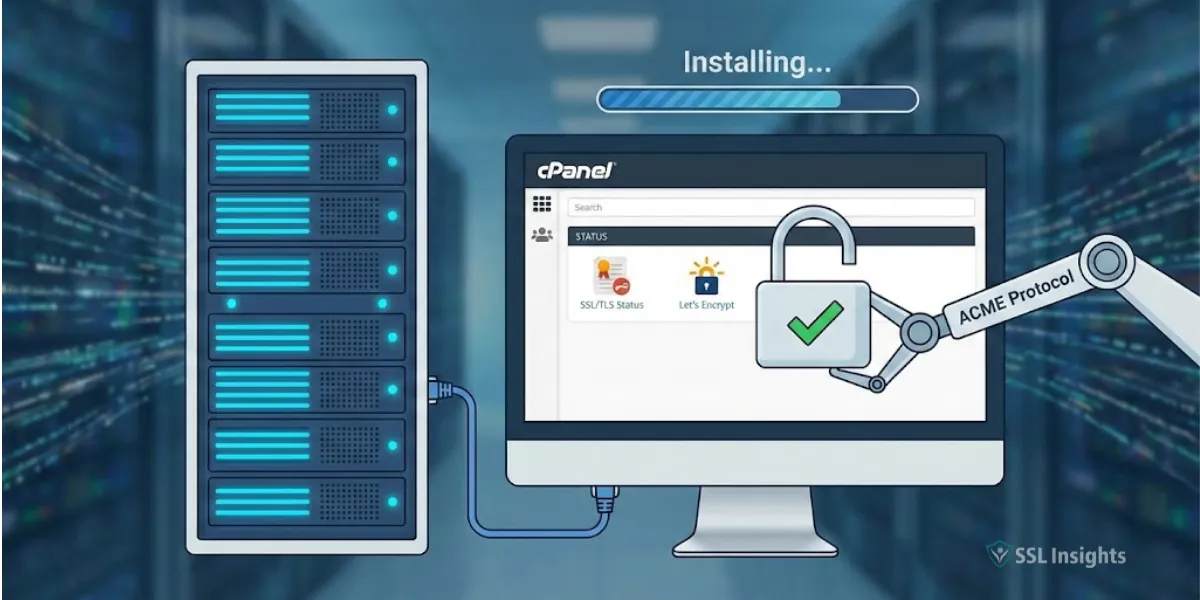
To install an ACME SSL certificate on cPanel, navigate to the SSL/TLS Status section, select AutoSSL, and enable it for your domains. Alternatively, use the ACME client in cPanel’s Terminal or manually install certificates through SSL/TLS > Manage SSL sites. The process takes 5-10 minutes and provides free, automated SSL certificates.
What is an ACME SSL Certificate?
ACME (Automated Certificate Management Environment) is a protocol that enables automatic SSL certificate issuance and renewal. These certificates, commonly provided by Let’s Encrypt, offer free, domain-validated (DV) SSL certificates that encrypt data between your website and visitors.
Key Benefits:
- Free of charge with automatic renewal
- Industry-standard 2048-bit encryption
- Trusted by all major browsers
- Valid for 90 days with auto-renewal every 60 days
Prerequisites Before Installation of ACME SSL certificate on cPanel
Before installing an ACME SSL certificate on cPanel, ensure you have:
- Active cPanel Hosting Account: Version 11.62 or higher
- Domain Properly Configured: DNS pointing to your server
- Port 80 Access: Required for domain validation
- Root or WHM Access (for server-wide AutoSSL configuration)
- Valid Email Address: For certificate notifications
Method 1: Install ACME SSL Using AutoSSL (Recommended)
AutoSSL is cPanel’s built-in feature that automatically obtains and installs ACME certificates.
Step 1: Log into cPanel
- Access your cPanel dashboard using your credentials
- URL format: https://yourdomain.com:2083 or https://serverip:2083
Step 2: Navigate to SSL/TLS Status
- Scroll to the “Security” section
- Click on “SSL/TLS Status“
Step 3: Enable AutoSSL
- Review domains listed without SSL certificates
- Check the boxes next to domains you want to secure
- Click “Run AutoSSL” button
Step 4: Verify Installation
- Wait 2-5 minutes for certificate issuance
- Green checkmark indicates successful installation
- Visit your website with https:// to confirm
AutoSSL Configuration Time:
- Initial setup: 5-10 minutes
- Automatic renewal: Every 60 days
- Certificate validity: 90 days
Method 2: Manual ACME Installation via Terminal
For advanced users who prefer command-line control:
Step 1: Access Terminal in cPanel
# Navigate to cPanel > Advanced > Terminal
Step 2: Install ACME Client (acme.sh)
curl https://get.acme.sh | sh
source ~/.bashrc
Step 3: Issue Certificate
acme.sh --issue -d yourdomain.com -d www.yourdomain.com -w /home/username/public_html
Step 4: Install Certificate in cPanel
acme.sh --deploy --deploy-hook cpanel_uapi -d yourdomain.com
Step 5: Set Up Auto-Renewal
acme.sh --install-cronjob
Method 3: Manual Certificate Installation via SSL/TLS Manager
If you have ACME certificates from external sources:
Step 1: Obtain Certificate Files
- Certificate (CRT)
- Private Key (KEY)
- Certificate Authority Bundle (CABUNDLE)
Step 2: Access SSL/TLS Manager
- Login to cPanel
- Navigate to Security > SSL/TLS
Step 3: Install Certificate
- Click “Manage SSL sites“
- Select your domain from dropdown
- Paste Certificate, Private Key, and CA Bundle
- Click “Install Certificate“
Step 4: Verify HTTPS
- Visit https://yourdomain.com
- Check for padlock icon in browser
- Use SSL Checker tools for validation
Troubleshooting Common Issues
Issue 1: AutoSSL Fails to Install
Solution:
- Verify DNS propagation (24-48 hours for new domains)
- Ensure domain points to correct server IP
- Check port 80 is not blocked by firewall
- Disable CloudFlare proxy temporarily
Issue 2: Certificate Not Trusted
Solution:
- Clear browser cache and cookies
- Verify intermediate certificates are installed
- Check certificate chain completeness
- Wait for browser certificate cache refresh
Issue 3: Mixed Content Warnings
Solution:
- Update internal links from HTTP to HTTPS
- Modify .htaccess for HTTPS redirection
- Use SSL/TLS checker plugins
- Review embedded resources (images, scripts, CSS)
Issue 4: Certificate Renewal Fails
Solution:
- Check AutoSSL is enabled in WHM
- Verify sufficient disk space
- Review error logs in cPanel
- Contact hosting provider support
HTTPS Redirection Setup
After SSL installation, force HTTPS across your entire site:
Using .htaccess File:
# Add to your .htaccess file in public_html
RewriteEngine On
RewriteCond %{HTTPS} off
RewriteRule ^(.*)$ https://%{HTTP_HOST}%{REQUEST_URI} [L,R=301]
Using cPanel Redirects:
- Go to Domains > Redirects
- Choose “Permanent (301)” redirect type
- Select domain and enable “www redirection“
- Save settings
Best Practices for ACME SSL Certificates
- Enable Auto-Renewal: Prevent certificate expiration
- Monitor Certificate Status: Check SSL/TLS Status monthly
- Backup Certificates: Store copies of private keys securely
- Use WWW and Non-WWW: Cover both domain variations
- Implement HSTS: Add HTTP Strict Transport Security header
- Regular Security Audits: Test SSL configuration quarterly
- Update Contact Email: Ensure renewal notifications reach you
ACME vs. Paid SSL Certificates: When to Choose Each
Choose ACME (Let’s Encrypt) When:
- Running standard websites or blogs
- Need basic domain validation
- Budget is limited
- Automatic renewal is priority
- Operating multiple small sites
Choose Paid SSL When:
- E-commerce sites requiring validation seal
- Need Organization Validation (OV) or Extended Validation (EV)
- Require warranty protection
- Need dedicated support
- Corporate reputation matters
Performance Impact of SSL Certificates
ACME SSL certificates have minimal performance impact:
- Page Load Time: +50-100ms (negligible)
- Server CPU Usage: <2% increase
- SEO Benefits: Google ranking boost for HTTPS sites
- User Trust: 85% users prefer HTTPS websites
- Browser Warnings Avoided: HTTP sites marked “Not Secure”
Final Words
Installing an ACME SSL certificate on cPanel is straightforward with AutoSSL, providing free, automatic encryption for your websites. Whether using the automated AutoSSL feature or manual terminal installation, ACME certificates offer robust security without cost. Regular monitoring and proper configuration ensure continuous protection for your visitors.
For persistent issues or custom requirements, consult your hosting provider’s support team for assistance with server-level SSL configuration.
Frequently Asked Questions
How long does ACME certificate installation take?
AutoSSL typically installs certificates within 5-10 minutes. Manual installation takes 15-20 minutes depending on your familiarity with cPanel.
Can I install ACME certificates on multiple domains?
Yes, AutoSSL can secure unlimited domains and subdomains within your cPanel account automatically.
What happens when ACME certificate expires?
AutoSSL automatically renews certificates 30 days before expiration. Manual installations require cron job setup for auto-renewal.
Is ACME SSL as secure as paid certificates?
Yes, ACME certificates use the same encryption standards (2048-bit) as paid certificates. The difference is validation level, not encryption strength.
Can I use ACME with CloudFlare?
Yes, but disable CloudFlare proxy (orange cloud) during initial installation. Re-enable after certificate is active.

Priya Mervana
 Verified Web Security Experts
Priya Mervana is working at SSLInsights.com as a web security expert with over 10 years of experience writing about encryption, SSL certificates, and online privacy. She aims to make complex security topics easily understandable for everyday internet users.