
If you have encountered the ERR_QUIC_PROTOCOL_ERROR message when using Chrome, you are not the first person. This error can interrupt your browsing, but it can be solved. In this guide, I’ll explain what this issue is, what is causing it, and how to fix it correctly. By the time you complete this guide, you will know how to easily solve this problem and prevent it from occurring again.
What is the ERR_QUIC_PROTOCOL_ERROR?
The ERR_QUIC_PROTOCOL_ERROR is an error that is specific to Chrome and it occurs when there is a problem with the QUIC (Quick UDP Internet Connections) protocol. QUIC is a Google chrome developed technology to enhance the speed and security of web browsing. However, when Chrome is not able to establish a proper connection with the help of QUIC, it throws this error that denies the user access to certain websites.
What are the Causes of ERR_QUIC_PROTOCOL_ERROR
Knowing the cause of this problem is the first step towards solving it. Following are the most common reasons why this error occurs:
- Using an Older Version of Chrome: Earlier versions of Chrome may not have a full QUIC protocol
- Network Configuration Issues: Incorrectly configured proxy settings or firewalls can pose a threat to the QUIC protocol.
- Incompatible Extensions: Some Chrome extensions may pose a conflict with the QUIC protocol.
- Cache or Cookie Corruption: Stale or damaged browser data can cause errors.
- Incompatibility of the QUIC Protocol: There may be some websites or networks that are incompatible with the QUIC
How to Fix the ERR_QUIC_PROTOCOL_ERROR in Chrome
If you’re wondering how to resolve this issue, try these five proven solutions:
- Disable the QUIC Protocol in Chrome
- Disable Chrome Extensions
- Check Proxy Settings in Windows
- Adjust Firewall Settings
- Clear Bad Cache or Cookies
Solution 1: Disable the QUIC Protocol in Chrome
Since the error is tied to the QUIC protocol, disabling it can often resolve the issue:
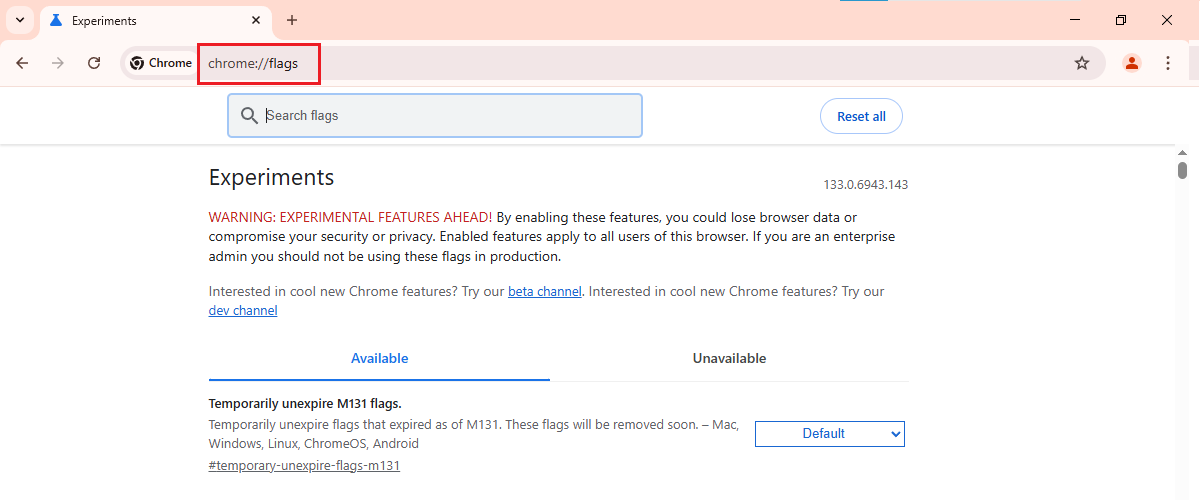
- Open Chrome and type chrome://flags in the address bar.
- Search for "QUIC" using the search bar.
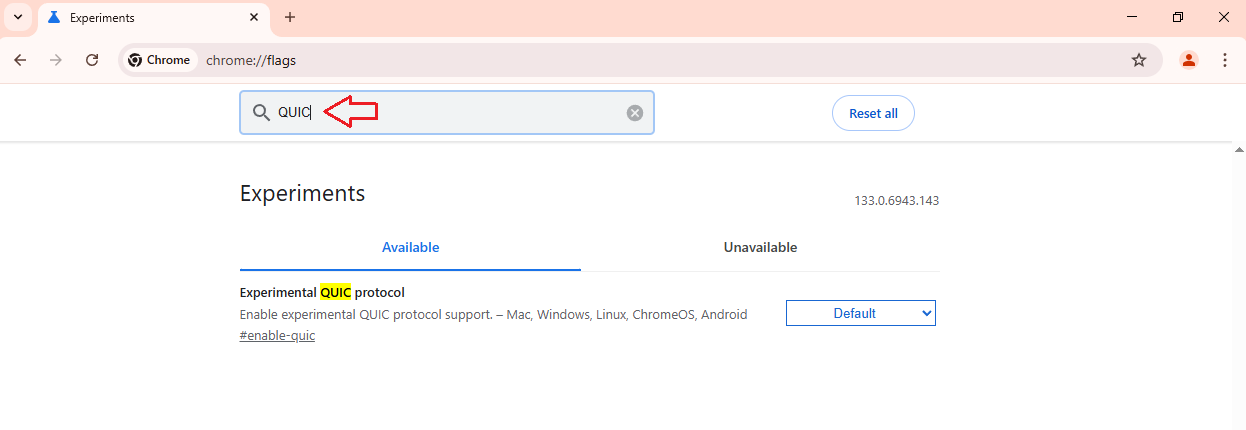
- Find the Experimental QUIC protocol option and set it to Disabled.

- Restart Chrome and check if the error is resolved.
Solution 2: Disable Chrome Extensions
Conflicting extensions can sometimes cause this issue. To troubleshoot:
- Click the three-dot menu in Chrome and navigate to Extensions >> Manage Extensions.

- Disable all extensions by toggling them off.
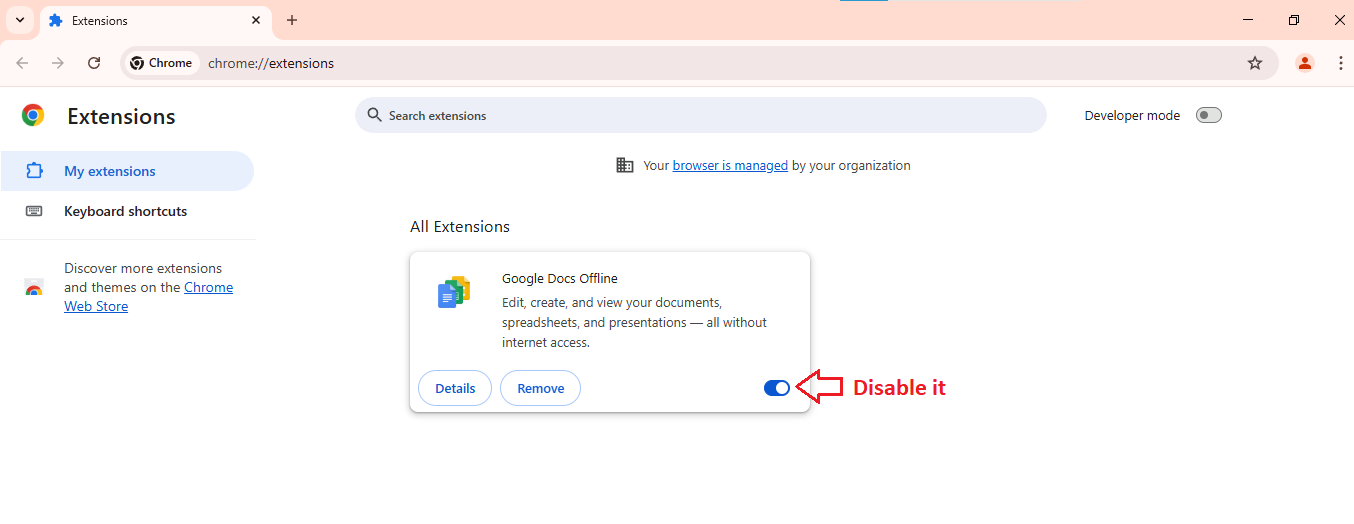
- Restart Chrome and re-enable extensions one by one to identify the problematic one.
Solution 3: Check Proxy Settings in Windows
Incorrect proxy settings can interfere with the QUIC protocol.
Here’s how to fix this:
- Press Windows + I to open Settings.
- Go to Network & Internet > Proxy.
- Make sure the Automatically detect settings option is turned on.
- If manual proxy settings are enabled, disable them.
Solution 4: Adjust Firewall Settings
Firewall restrictions can block the QUIC protocol, leading to this error.
To adjust your firewall:
- Open Windows Defender Firewall from the Control Panel.
- Click on Allow an app or feature through Windows Defender Firewall.
- Ensure Chrome is allowed through both private and public networks.
Solution 5: Clear Bad Cache or Cookies
Corrupted cache or cookies can trigger this issue.
To clear them:
- Open Chrome and press Ctrl + Shift + Delete.
- Select Cached images and files and Cookies and other site data.
- Click Clear data and restart Chrome.
ERR_QUIC_PROTOCOL_ERROR FAQs
What Are Some Common ERR_QUIC_PROTOCOL_ERROR Messages?
- "ERR_QUIC_PROTOCOL_ERROR: Connection failed."
- "Unable to establish a secure connection due to QUIC protocol error."
What Can I Do to Prevent ERR_QUIC_PROTOCOL_ERROR?
- Keep Chrome updated to the latest version.
- Regularly clear cache and cookies.
- Avoid using outdated or conflicting extensions.
How Do I Know if I Have an ERR_QUIC_PROTOCOL_ERROR?
You’ll see an error message in Chrome stating "ERR_QUIC_PROTOCOL_ERROR" when trying to access a website. The page will fail to load, and the error code will be displayed on the screen.