
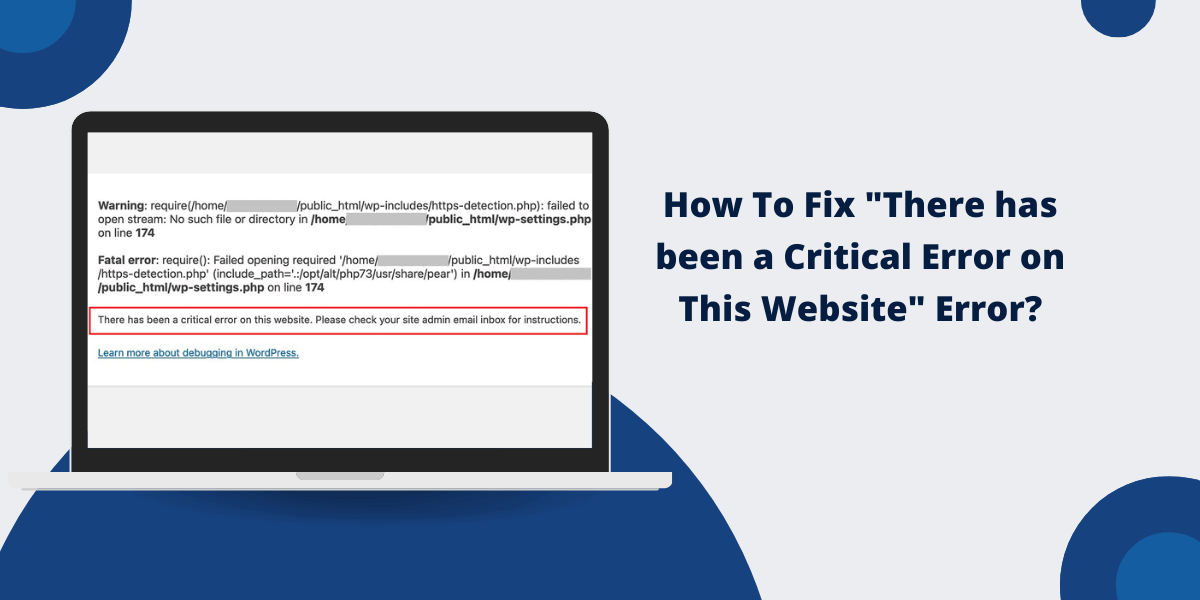
The "there has been a critical error on this website" message appears when WordPress encounters a fatal PHP error that prevents your site from loading. This error typically stems from plugin conflicts, theme issues, corrupted files, or PHP memory exhaustion - all of which crash your site's core functionality. You can fix it by deactivating plugins via FTP, switching to a default theme, increasing your PHP memory limit, or restoring clean core files. Most cases resolve within minutes once you identify the specific trigger.
What Causes the WordPress Critical Error?
Plugin conflicts trigger the majority of critical errors on WordPress sites. According to the Patchstack State of WordPress Security 2025, 96% of the 7,966 WordPress vulnerabilities discovered in 2024 originated in third-party plugins - making what causes WordPress critical error issues almost always a plugin problem first. When two plugins use incompatible code or attempt to run the same function simultaneously, your site crashes.
Theme problems create critical errors when template files contain PHP syntax mistakes or reference missing functions. Switching themes without proper deactivation, or activating a poorly coded theme, raises your exposure significantly.
PHP memory exhaustion stops WordPress from completing necessary tasks. According to WordPress's official hosting requirements, sites need a minimum of 256MB of PHP memory for optimal performance - and many shared hosting plans default to 64MB or 128MB, triggering memory failures under load.
Corrupted core files from failed updates or malware infections round out the most common causes. When critical system files are damaged, WordPress becomes unstable regardless of plugin or theme status.
| Error Type | Typical Trigger | First Fix to Try |
| Critical PHP error | Plugin conflict or outdated plugin | Deactivate all plugins via FTP |
| Critical error vs 500 internal server error WordPress | Server misconfiguration or .htaccess issue | Rename .htaccess, then check plugins |
| White screen of death | PHP fatal error or memory exhaustion | Enable debug mode, increase memory limit |
| Database connection error | Corrupted wp-config.php or MySQL issue | Verify database credentials in wp-config.php |
Also Read: How to Fix HTTP 500 Internal Server Error?
How Can I Access My Site When It Shows a Critical Error?
WordPress critical error FTP fix is the most reliable first step when your dashboard won't load. Download FileZilla or use your hosting provider's built-in FTP client, then connect using your FTP credentials from your hosting account. FTP gives you direct file access without admin access - making it the go-to method for a WordPress critical error fix without admin access.
phpMyAdmin gives you direct database access through your hosting control panel. Navigate to the databases section in cPanel or your hosting dashboard to launch it. This tool lets you modify database tables - including theme settings - without touching the WordPress frontend.
SSH access offers faster command-line control for advanced users. Contact your hosting provider to enable SSH if it's not already active. Your hosting control panel also contains built-in file managers that work even when WordPress itself is broken.
What Steps Fix Plugin-Related Critical Errors?
WordPress critical error plugin conflict fix starts with a single folder rename. Connect via FTP and navigate to /wp-content/. Rename the plugins folder to plugins_old or plugins_disabled. Refresh your site - if the error clears, a plugin is the culprit.
Once you've confirmed a plugin conflict, restore the original folder name and rename each plugin subfolder one at a time. When the error returns, you've found the problem plugin. Remove it from /wp-content/plugins/ and contact the developer for a fix or find an alternative.
Always check for plugin updates before reinstalling. Developers often release patches specifically for PHP compatibility issues that trigger this error.
Plugin Troubleshooting Checklist:
- Rename the entire plugins folder via FTP to deactivate all at once
- Test site functionality immediately after
- Reactivate plugins one at a time, testing after each
- Monitor /wp-content/debug.log for specific conflict messages
- Remove the incompatible plugin permanently
- Update all remaining plugins to their latest versions
How Do I Resolve Theme-Related Critical Errors?
WordPress theme causing critical error situations resolve fastest through a forced theme switch. Navigate to /wp-content/themes/ via FTP and rename your active theme folder. WordPress automatically falls back to a default theme like Twenty Twenty-Five.
If FTP access isn't available, modify the database directly through phpMyAdmin. Select your WordPress database, open the wp_options table, and find the template and stylesheet rows. Change their values to twentytwentyfive to force the theme switch from the database level.
After identifying a theme as the cause, download a fresh copy from the theme developer and upload it via FTP - replacing corrupted files while preserving any child theme you use. Review the theme changelog before reactivating; breaking changes are often documented there.
What Memory Limit Adjustments Fix This Error?
Increase PHP memory limit WordPress by editing your wp-config.php file first. Add this line before "That's all, stop editing!":
define('WP_MEMORY_LIMIT', '256M');
If wp-config.php changes don't take effect, edit your .htaccess file in the WordPress root directory and add:
php_value memory_limit 256M
For VPS or dedicated server environments, create or edit php.ini and add memory_limit = 256M. Not all shared hosting environments allow this modification.
Contact your hosting provider when file edits don't resolve the memory limit. Shared hosting plans often enforce strict caps that require an account upgrade or a server migration to overcome.
| Method | File Location | Code to Add | Access Level |
| wp-config.php | WordPress root | define('WP_MEMORY_LIMIT', '256M'); | All users |
| .htaccess | WordPress root | php_value memory_limit 256M | Most shared hosting |
| php.ini | WordPress root or server | memory_limit = 256M | VPS/dedicated servers |
How Do I Enable WordPress Debug Mode to Find Errors?
WordPress debug mode enable critical error diagnosis requires three lines added to wp-config.php before "That's all, stop editing!":
define('WP_DEBUG', true);
define('WP_DEBUG_LOG', true);
define('WP_DEBUG_DISPLAY', false);
This configuration writes errors to /wp-content/debug.log without exposing them to visitors. To WordPress critical error check error log entries, access this file via FTP and look for messages that name specific plugins, themes, or PHP functions.
Debug logs reveal exact file paths and line numbers causing the failure. A line like Fatal error: Call to undefined function... pinpoints the broken plugin or theme file immediately.
Disable debug mode after fixing the issue. Change WP_DEBUG to false and delete the debug log file - it can contain sensitive server path information.
Can Corrupted WordPress Files Cause Critical Errors?
How to fix corrupted WordPress files starts with a clean core reinstall. Download a fresh WordPress copy from WordPress.org and upload only the wp-admin and wp-includes folders via FTP. Never replace wp-content - it holds your themes, plugins, and media uploads.
You can verify file integrity by comparing checksums against official WordPress releases. The WP-CLI command wp core verify-checksums handles this automatically if you have SSH access.
Database corruption requires activating repair mode. Add define('WP_ALLOW_REPAIR', true); to wp-config.php, then visit yoursite.com/wp-admin/maint/repair.php. Remove this line immediately after repairs complete.
Malware infections corrupt files while injecting malicious code. Run security scans using Wordfence or Sucuri to detect and remove infected files before re-uploading clean copies.
What Role Does Web Hosting Play in Critical Errors?
Critical error WordPress hosting server problems stem from your environment not meeting WordPress's baseline requirements. PHP version incompatibility is the leading hosting-related cause - your server needs PHP 8.0 or higher for modern WordPress installations, and sites still running PHP 7.4 hit compatibility failures as WordPress core requirements advance.
Resource limits on shared hosting trigger errors during traffic spikes. Your site shares server resources with hundreds of other sites, and when that allocation runs short, WordPress fails with a critical error. Misconfigured Apache modules, PHP extensions, or database settings compound this problem.
Switching to managed WordPress hosting often eliminates persistent errors. These environments are configured specifically for WordPress - memory limits, PHP versions, and server software are pre-optimized rather than shared across unrelated applications.
How Do I Prevent Future Critical Errors?
WordPress critical error prevent future occurrences with three non-negotiable habits: back up before every change, test updates in staging, and monitor error logs weekly.
Use automated backup solutions for WordPress to create restore points before any plugin update, theme change, or WordPress core upgrade. Schedule daily backups for active sites. A backup from 24 hours ago resolves almost any critical error within minutes.
Test all updates on a staging environment before pushing them live. A staging site is a duplicate of your production site where you can break things safely. Many managed WordPress hosts include staging environments in their plans.
Prevention Best Practices:
- Update WordPress core within 48 hours of new releases
- Update plugins and themes on a monthly schedule
- Remove unused plugins and themes completely - idle plugins still execute code
- Use a security plugin to monitor file changes
- Document every site modification with a date and description
When Should I Contact Professional Help?
When to contact professional for WordPress error situations: if plugin deactivation, theme switching, and memory increases haven't resolved the error, a professional diagnosis saves more time than continued self-troubleshooting.
Database corruption beyond basic repair mode requires specialized recovery tools. WordPress developers use advanced techniques when the standard repair page at wp-admin/maint/repair.php fails to restore database integrity.
Server-level issues outside WordPress control - PHP configuration, Apache modules, MySQL settings - need hosting support or a server administrator. Security breaches causing critical errors require immediate intervention; malware removal and security hardening must happen before you restore the site.
| Situation | Who to Contact | Expected Resolution Time |
| Plugin/theme conflicts | WordPress developer | 1-4 hours |
| Server configuration | Hosting support | 2-24 hours |
| Database corruption | Database specialist | 4-8 hours |
| Security breach | Security professional | Immediate to 48 hours |
How to Fix Critical Error in WordPress: Quick Summary
How to fix critical error in WordPress follows a reliable sequence. Start with plugin deactivation via FTP, move to a default theme switch, adjust memory limits in wp-config.php, and enable debug mode to read exact error messages. For deeper problems, reinstall WordPress core files, repair the database, and scan for malware. If none of these steps work, the issue lives at the server level - contact your hosting provider or a WordPress professional.
Access your site through FTP or SSH whenever your dashboard won't load. Document each change and test after every modification. For reference, see how a critical error vs 500 internal server error WordPress differs - a 500 error usually points to a server-side misconfiguration, while the critical error message is WordPress's own fatal PHP error handler introduced in version 5.2. Knowing which you're dealing with narrows your fix immediately.
FAQ: Common Questions About the WordPress Critical Error
What happens when WordPress sends a recovery email about a critical error?
WordPress 5.2 and later sends a WordPress critical error recovery email to your admin address whenever a fatal error occurs. The email contains a link to a temporary recovery mode URL that lets you log into the dashboard safely - even while the front end is broken. Use this link to deactivate the problem plugin or theme without needing FTP access.
Is a WordPress critical error after update always caused by the plugin I just updated?
WordPress critical error after update is almost always caused by the plugin or theme you just updated, but not always the obvious one. Sometimes a core WordPress update changes a PHP function that a different, older plugin depends on. Enable debug mode immediately after the error appears - the debug log names the exact file responsible, which removes the guesswork.
Does a WordPress critical error mean my database has a connection problem?
A WordPress critical error database connection problem produces a different message: "Error establishing a database connection." The critical error message specifically means WordPress loaded the database connection but then hit a fatal PHP error during page execution. If you see both messages alternating, check your wp-config.php database credentials and run database repair mode.
Is the WordPress critical error the same as a white screen of death?
A WordPress critical error white screen and the white screen of death (WSoD) are related but slightly different. The WSoD is a blank page with no message - it predates WordPress 5.2's error recovery system. The critical error message is the modern replacement: the same underlying fatal PHP error, but with a visible message and a recovery email. Both are fixed using the same troubleshooting steps.
Why does the critical error appear only after a specific plugin update?
Plugin updates change PHP code, and that new code can conflict with another plugin or exceed your server's memory limit for the first time. The conflict didn't exist before because the old version used different functions. Rename the updated plugin's folder via FTP to roll back its activation, then check with the plugin developer whether a compatibility fix is available.
Can a hacked WordPress site show the critical error message?
Yes. Malware often injects invalid PHP into plugin or theme files, causing fatal errors that trigger the critical error message. If your error appeared without any recent updates or changes, run a security scan with Wordfence or Sucuri before reinstalling files - cleaning the infection first prevents it from immediately reappearing.

Priya Mervana
 Verified Web Security Experts

Priya Mervana is working at SSLInsights.com as a web security expert with over 10 years of experience writing about encryption, SSL certificates, and online privacy. She aims to make complex security topics easily understandable for everyday internet users.