
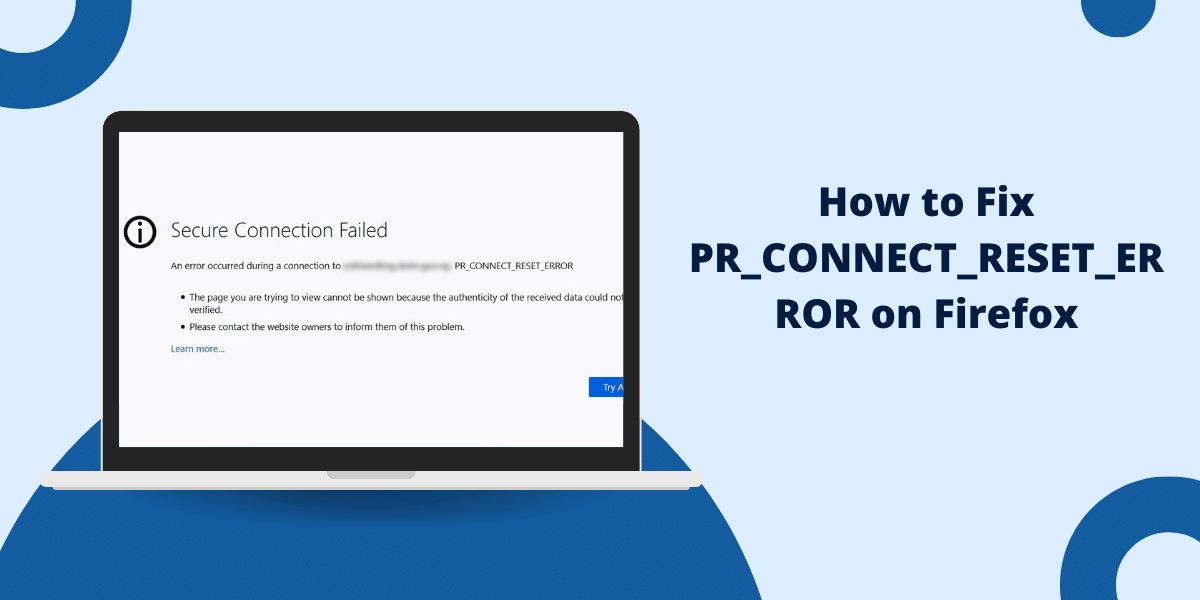
PR_CONNECT_RESET_ERROR is a Firefox connection error that appears when the browser attempts a secure HTTPS connection and the server - or something blocking it - abruptly terminates the request. The fix depends on the cause: if antivirus HTTPS scanning is interfering, disable it; if a VPN or proxy is the culprit, disconnect it temporarily; if browser data is corrupted, clear your cache and SSL settings. Most users resolve the firefox PR_CONNECT_RESET_ERROR fix in under 10 minutes by working through the steps below.
What Is PR_CONNECT_RESET_ERROR in Firefox?
PR_CONNECT_RESET_ERROR is a Firefox-specific error code PR_CONNECT_RESET_ERROR that signals an abrupt termination of a connection before it could be established. The "PR" prefix stands for NSPR (Netscape Portable Runtime), the low-level networking library Firefox uses. When this error appears, it means something - your antivirus, a VPN, a proxy, or the remote server itself - sent a TCP RST (reset) packet that shut down the connection mid-handshake.
According to Mozilla's official security error codes documentation, this class of reset errors is most commonly triggered by security software intercepting encrypted connections and substituting its own certificate, which Firefox rejects.
You'll typically see this message displayed in the browser:
An error occurred during a connection to yoursite.com. PR_CONNECT_RESET_ERROR.
The error appears exclusively in Firefox. The same site will usually load fine in Chrome or Edge, which is a key diagnostic clue - it means the problem is in Firefox's environment, not the website itself.
What Causes PR_CONNECT_RESET_ERROR?
Understanding what causes PR_CONNECT_RESET_ERROR narrows down the fix before you start troubleshooting. These are the seven most common triggers:
- Antivirus HTTPS scanning: Security tools like Avast, Kaspersky, Bitdefender, and ESET intercept encrypted traffic by inserting their own certificate. Firefox's strict certificate validation rejects this and resets the connection. This is the most frequent cause.
- VPN or proxy misconfiguration: A VPN server that blocks certain ports or a misconfigured proxy can cause the server to refuse the connection.
- Corrupted browser cache or SSL cache: Stale or corrupted cached data can force Firefox into a broken connection state.
- Incorrect system date and time: SSL/TLS certificates are time-sensitive. A clock that's off by even a few hours causes certificate validation to fail.
- Firewall rules blocking Firefox: A local firewall may have a rule that prevents Firefox from reaching specific servers on port 443.
- Problematic browser extensions: An extension that intercepts network requests (privacy tools, ad blockers, VPN extensions) can break secure connections.
- Server-side issues: The remote server may have an expired certificate, misconfigured TLS settings, or be rejecting connections from certain IP ranges.
How to Fix PR_CONNECT_RESET_ERROR: 10 Steps
How to fix PR_CONNECT_RESET_ERROR requires working through each possible cause systematically. Start from Step 1 and move forward only if the error persists.
Step 1: Check Your Internet Connection
Restart your router or modem first. A temporary network glitch is the easiest fix, and ruling it out saves time on every step that follows.
- Ensure your internet is stable and other browsers can load the same site.
- Restart your router, wait 30 seconds, then reconnect.
- Check for loose cables or hardware faults.
Step 2: Check Firefox Network Settings
An incorrect network configuration in Firefox can silently reroute or block connections.
- Open Firefox and click the ☰ menu → Settings.
- Go to General → Network Settings and click Settings.
- Confirm the configuration is set to Use system proxy settings or No proxy - not a manual proxy pointing to a dead address.
Step 3: Reset Your SSL Cache
Stale SSL session data stored in Firefox can persist broken connection states.
- Type about:config in the Firefox address bar and press Enter.
- Accept the risk warning.
- Search for ssl and right-click any user-modified preferences, then select Reset.
Step 4: Clear Your Browser Cache and Cookies
Corrupted cached data is a common but easily fixed trigger for the PR connect reset error Firefox.
- Go to Settings → Privacy & Security → Clear Data.
- Check both Cookies and Site Data and Cached Web Content.
- Click Clear, then restart Firefox.
Step 5: Check Your System Date and Time
TLS certificates carry strict validity windows, and Firefox checks the system clock against them. An incorrect date or time causes every HTTPS connection to fail validation.
- On Windows: Right-click the clock → Adjust date/time → enable Set time automatically.
- On macOS: System Settings → General → Date & Time → enable Set automatically.
Step 6: Deactivate Antivirus HTTPS Scanning
This step resolves the antivirus blocking Firefox connection problem - and it's the most common cause of this error. Security software like Avast, AVG, Bitdefender, Kaspersky, and ESET perform HTTPS scanning by default.
Mozilla's own support documentation recommends disabling HTTPS or SSL scanning in your antivirus as a primary fix when this error affects multiple secure sites:
- Avast/AVG: Menu → Settings → Protection → Core Shields → Web Shield → uncheck Enable HTTPS Scanning.
- Bitdefender: Protection → Online Threat Prevention → Settings → toggle off Encrypted Web Scan.
- Kaspersky: Settings → Additional → Network → select Do not scan encrypted connections.
- ESET: Open the dashboard → go to SSL/TLS filtering settings and disable protocol filtering.
After disabling, restart Firefox and test the site.
Step 7: Disable Firefox Extensions
Disable extensions Firefox connection error issues are easy to diagnose with a quick test.
- Go to Settings → Extensions & Themes.
- Disable all extensions at once.
- Reload the site. If the error disappears, re-enable extensions one at a time to identify the culprit.
- Common offenders: VPN extensions, privacy proxies, and network-intercepting ad blockers.
Step 8: Check Your VPN Settings
VPN causing PR_CONNECT_RESET_ERROR happens when VPN servers block HTTPS traffic on certain ports or when the VPN client misconfigures DNS.
- Disconnect your VPN entirely and reload the site.
- If it loads, the VPN is the cause - try switching to a different VPN server or disabling split tunneling.
- Reconfigure your VPN's DNS settings or contact your VPN provider for Firefox-specific guidance.
Step 9: Check Your Proxy Settings
PR_CONNECT_RESET_ERROR proxy settings conflicts occur when Firefox is pointed at a proxy that no longer exists or blocks HTTPS traffic.
- Go to Settings → General → Network Settings → Settings.
- Set the connection type to No Proxy and click OK.
- Restart Firefox and test the site.
Step 10: Reset Firefox's SSL Settings
Reset Firefox SSL settings to their defaults to undo any manual changes that may have broken TLS negotiation.
- Type about:config in the address bar and press Enter.
- Search for security.tls.version.min.
- If the value shows as bold (meaning it's been user-modified), right-click it and select Reset.
For reference, the SSL/TLS handshake process begins at this point - if Firefox's minimum TLS version is set too low or too high relative to what the server supports, the connection resets before it completes.
How to Prevent PR_CONNECT_RESET_ERROR
How to avoid PR_CONNECT_RESET_ERROR comes down to keeping Firefox and its environment consistent.
- Keep Firefox updated. Go to Settings → General → Firefox Updates and enable automatic updates. Mozilla releases patches that address connection-handling bugs regularly.
- Configure antivirus HTTPS scanning carefully. If you need your antivirus to scan HTTPS traffic, check whether your security software has a Firefox-specific compatibility mode before enabling it.
- Use reliable VPN servers. Avoid free VPN providers that block standard HTTPS ports. If you need a VPN, test it against Firefox specifically.
- Clear cache periodically. A monthly cache clear under Settings → Privacy & Security prevents stale data from accumulating.
- Only install trusted extensions. Every extension that touches network requests is a potential source of connection interference. Keep your extension list lean.
- Verify SSL/TLS protocol settings. If you've ever manually changed security.tls.version.min in about:config, reset it. Refer to Mozilla's guidance on supported TLS protocols to confirm your settings are correct.
Frequently Asked Questions
What is PR_CONNECT_RESET_ERROR in Firefox?
PR_CONNECT_RESET_ERROR is a Firefox network error that occurs when an HTTPS connection attempt is abruptly terminated - either by antivirus software intercepting the connection, a VPN or proxy blocking the request, a misconfigured server, or corrupted browser settings. The PR prefix refers to Firefox's internal NSPR networking library.
What is the PR_CONNECT_RESET_ERROR server side?
The PR_CONNECT_RESET_ERROR server side refers to cases where the remote server - rather than your browser or local network - terminates the connection. This typically happens when the server has an expired or misconfigured SSL certificate, uses an unsupported TLS version, or is configured to reject connections from certain IP addresses or VPN exit nodes.
Can a VPN cause PR_CONNECT_RESET_ERROR?
Yes. VPN causing PR_CONNECT_RESET_ERROR is a common scenario - particularly when the VPN server blocks HTTPS ports, uses an incompatible DNS configuration, or routes traffic through an IP that the target server rejects. Disconnecting the VPN temporarily is the fastest way to confirm it's the cause.
Can browser extensions cause PR_CONNECT_RESET_ERROR?
Yes. Extensions that intercept or modify network requests - ad blockers, privacy proxies, and VPN extensions - can interfere with Firefox's TLS handshake and trigger a connection reset. Disable all extensions, test the site, then re-enable them one by one to find the offender.
What is PR_CONNECT_RESET_ERROR in Splunk?
PR connect reset error in Splunk log entries typically indicate a failed connection attempt between a Splunk forwarder or search head and a remote data source or indexer. The root cause is usually a TLS certificate mismatch, network-level reset from a firewall, or a server that rejected the connection. Splunk's own TLS/certificate configuration and any intermediate security appliances should be reviewed.
How do I fix PR_CONNECT_RESET_ERROR quickly?
The fastest path: disable antivirus HTTPS scanning (most common cause), disconnect any VPN, clear your Firefox cache and cookies, then reload the site. If those three steps don't resolve it, work through the full 10-step guide above.