
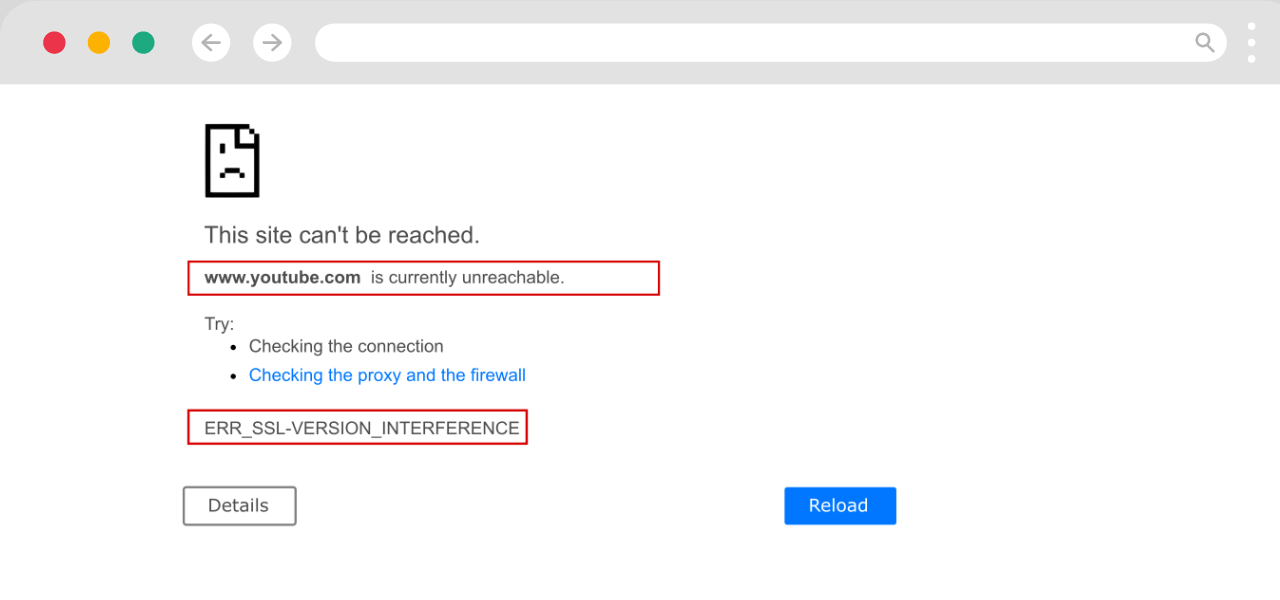
The ERR_SSL_VERSION_INTERFERENCE error appears in Google Chrome when your browser and a website's server cannot agree on a compatible SSL/TLS protocol version during the connection handshake. Google Chrome blocks the connection entirely rather than risk an insecure exchange - and in most cases, you can resolve this in under five minutes by updating Chrome, clearing cached data, or disabling conflicting extensions.
If you see this error, you're not alone - it's one of the most frequently reported SSL errors in Chrome. The good news is that most cases are fixed in under five minutes without technical expertise. This guide walks you through every fix in priority order, starting with the quickest solutions.
What Is the ERR_SSL_VERSION_INTERFERENCE Error?
ERR_SSL_VERSION_INTERFERENCE is a Chrome-specific SSL error that occurs when a TLS version mismatch prevents a secure connection from forming. Every HTTPS connection requires a "TLS handshake" in which your browser and the web server negotiate which encryption protocol version to use. When neither side can find a compatible version, the handshake fails and Chrome displays this error instead of loading the page.
According to Qualys SSL Pulse's June 2025 report, 75.3% of top websites now support TLS 1.3 - meaning servers still running only TLS 1.0 or 1.1 are increasingly out of step with modern browsers, making version mismatches more common.
What Causes ERR_SSL_VERSION_INTERFERENC?
There are five common causes of this error:
- TLS version mismatch: Chrome attempts TLS 1.3 but the server only accepts TLS 1.2, or the server has disabled TLS 1.2 entirely.
- Conflicting Chrome experimental flags: Chrome flags like the QUIC protocol or TLS 1.3 variants can conflict with a site's SSL configuration.
- Antivirus or firewall interference: Security software from Kaspersky, Avast, and similar vendors intercepts SSL connections and can break the TLS handshake.
- Outdated browser: An older version of Chrome may not handle newer TLS negotiation correctly.
- Corrupted browser cache or DNS cache: Stale or corrupt cache data causes Chrome to attempt a connection using outdated security parameters.
How to Fix ERR_SSL_VERSION_INTERFERENCE: 8 Fixes
Try the fixes below in order. Most users resolve the error within the first three steps.
Fix 1: Refresh the Page
The simplest fix is also the most overlooked. Press F5 (Windows) or Cmd+R (Mac) to reload the page. SSL handshake failures are sometimes caused by temporary network glitches that disappear on a second attempt. If the error persists after two refreshes, proceed to Fix 2.
Fix 2: Clear Browser Cache and Cookies
Stale cached data can interfere with new SSL handshakes. To clear Chrome's cache:
- Open Chrome and press Ctrl + Shift + Del (Windows) or Cmd + Shift + Del (Mac).
- Click the Advanced tab and set the Time Range to All Time.
- Check Browsing history, Cookies and other site data, and Cached images and files.
- Click Clear data, then restart Chrome and revisit the site.
Fix 3: Update Google Chrome
An outdated Chrome version may lack support for modern TLS negotiation. To update:
- Click the three-dot menu (⋮) in the top-right corner.
- Go to Help → About Google Chrome.
- Chrome will automatically check for and install any available update.
- Click Relaunch to apply the update, then revisit the site.
Fix 4: Disable TLS 1.3 via Chrome Flags (Most Effective Fix)
This is the most direct fix for TLS version conflicts. Chrome's experimental flags allow you to control which TLS version the browser uses.
- Open a new Chrome tab and type chrome://flags/ in the address bar, then press Enter.
- Find the TLS 1.3 Early Data option in the search results.
- Change the dropdown from Default to Disabled.
- Click the Relaunch button at the bottom of the screen.
- Revisit the website. If the error is gone, your SSL certificate needs to be updated to support TLS 1.3 properly.
Important: Disabling TLS 1.3 is a diagnostic step, not a permanent solution. If this fixes the error, the underlying issue is a server-side TLS misconfiguration that should be corrected by the website owner.
Fix 5: Disable QUIC Protocol
Chrome's experimental QUIC protocol (Quick UDP Internet Connections) can interfere with some SSL configurations.
- In Chrome, navigate to chrome://flags/#enable-quic.
- Find the Experimental QUIC Protocol option.
- Change the value from Default to Disabled.
- Click Relaunch and test the site again.
If disabling QUIC does not resolve the error, re-enable it before continuing to the next fix.
Fix 6: Disable or Update Antivirus / Security Software
Antivirus programs that include web protection features (such as Kaspersky Internet Security, Avast Web Shield, and Bitdefender) scan HTTPS traffic by intercepting the SSL connection. This interception can break TLS 1.3 handshakes.
- First, update your antivirus software to the latest version - the issue may already be patched.
- If the problem persists, temporarily disable the HTTPS scanning or web shield feature (not the entire antivirus).
- Test the website. If the error disappears, add the site to your antivirus's exclusion list rather than leaving the feature disabled.
Fix 7: Turn Off Hardware Acceleration
Chrome's hardware acceleration offloads rendering tasks to the GPU, but this can occasionally conflict with SSL processing.
- Open Chrome Settings (⋮ → Settings).
- Click System in the left sidebar.
- Toggle off Use hardware acceleration when available.
- Click Relaunch and check if the error is resolved.
Fix 8: Flush DNS Cache
An outdated or corrupted DNS cache can cause Chrome to attempt connections with stale server data, triggering SSL errors.
On Windows:
- Press Windows + R, type cmd, and press Enter.
- In the Command Prompt window, type: ipconfig /flushdns and press Enter.
- You should see: "Successfully flushed the DNS Resolver Cache."
- Restart Chrome and try the site again.
On Mac:
- Open Terminal (Applications → Utilities → Terminal).
- Type: sudo dscacheutil -flushcache; sudo killall -HUP mDNSResponder
- Press Enter, enter your admin password, and restart Chrome.
For Website Owners: Server-Side Fixes
If visitors report this error on your website, the problem is almost certainly a server-side TLS misconfiguration. Here is what to check:
- Ensure your server supports both TLS 1.2 and TLS 1.3 - disabling TLS 1.2 entirely will break access for many users and older systems.
- Renew your SSL certificate if it is expired or close to expiry - an expired cert disrupts the TLS handshake.
- Check that your SSL certificate supports TLS 1.3 cipher suites - older certificates issued before 2020 may need to be reissued.
- Test your server configuration at SSL Labs (ssllabs.com/ssltest/) to identify misconfigured protocols.
- If you use a CDN or load balancer, verify that the SSL termination layer supports modern TLS versions.
Quick Reference: Fixes at a Glance
| Fix | Time Required | Who Should Try It |
| 1. Refresh the page | 5 seconds | Everyone - try this first |
| 2. Clear browser cache | 2 minutes | All users |
| 3. Update Chrome | 2–5 minutes | All users |
| 4. Disable TLS 1.3 flag | 1 minute | All users (most effective) |
| 5. Disable QUIC protocol | 1 minute | All users |
| 6. Update/disable antivirus | 5 minutes | Users with web-protection AV |
| 7. Disable hardware acceleration | 1 minute | All users |
| 8. Flush DNS cache | 2 minutes | All users |
| Server-side TLS config fix | Varies | Website/server owners only |
ERR_SSL_VERSION_INTERFERENCE vs. Similar SSL Errors
| Error Code | Root Cause | Primary Fix |
| ERR_SSL_VERSION_INTERFERENCE | TLS version mismatch | Update Chrome, disable QUIC, force TLS 1.2 |
| ERR_SSL_VERSION_OR_CIPHER_MISMATCH | Cipher suite incompatibility | Update server SSL configuration |
| ERR_SSL_PROTOCOL_ERROR | General SSL handshake failure | Clear cache, disable extensions |
| NET::ERR_CERT_AUTHORITY_INVALID | Untrusted certificate issuer | Check certificate chain |
Frequently Asked Questions About ERR_SSL_VERSION_INTERFERENCE
What does ERR_SSL_VERSION_INTERFERENCE mean?
It means Chrome and the website's server could not agree on a TLS protocol version for the encrypted connection. The most common cause is a conflict between Chrome's TLS 1.3 implementation and an older or misconfigured SSL certificate on the server.
Is ERR_SSL_VERSION_INTERFERENCE dangerous?
No - the error itself is not a sign that your device has been compromised. It simply means Chrome blocked the connection because a secure channel could not be established. You cannot reach the site while the error is active, which protects you from connecting over an insecure or misconfigured channel.
Does ERR_SSL_VERSION_INTERFERENCE only happen in Chrome?
This specific error code is Chrome-specific, but the underlying TLS version mismatch can cause similar errors in Firefox (SEC_ERROR_HANDSHAKE_FAILURE) and Edge. The fixes involving TLS flags are Chrome-only; clearing cache and updating the browser apply to all browsers.
Why does the error happen on only one website?
If the error appears on a single site but not others, the problem is almost certainly on the server side - that website has a TLS misconfiguration, an expired SSL certificate, or has disabled support for the TLS version Chrome is trying to use. Contact the site owner or report it via their support channel.
Will disabling TLS 1.3 make my browser less secure?
TLS 1.3 is the most secure version of the protocol, so disabling it does reduce your theoretical security ceiling. However, TLS 1.2 with modern cipher suites is still considered secure for everyday browsing. Treat disabling TLS 1.3 as a short-term diagnostic step while the server-side issue is corrected.
How do I know if the problem is on my computer or the website's server?
Test the same URL in a different browser (Firefox or Edge) or on a different device or network. If the error appears across multiple browsers and devices, the issue is server-side. If it only appears in Chrome on your device, follow the browser-side fixes above.